Training Plans
This section lets you view all of your training plans, week by week, and track your progress across sessions.
Your training plans list
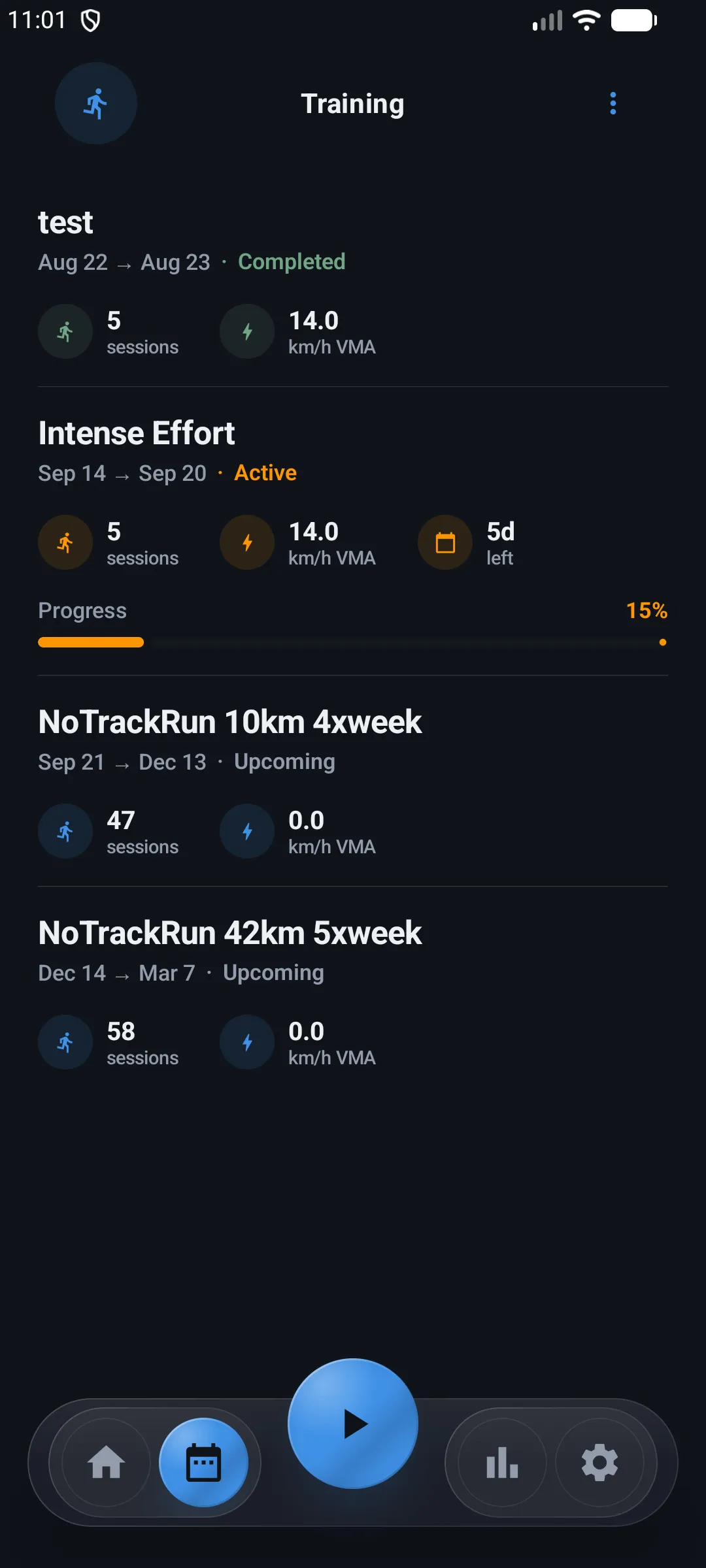
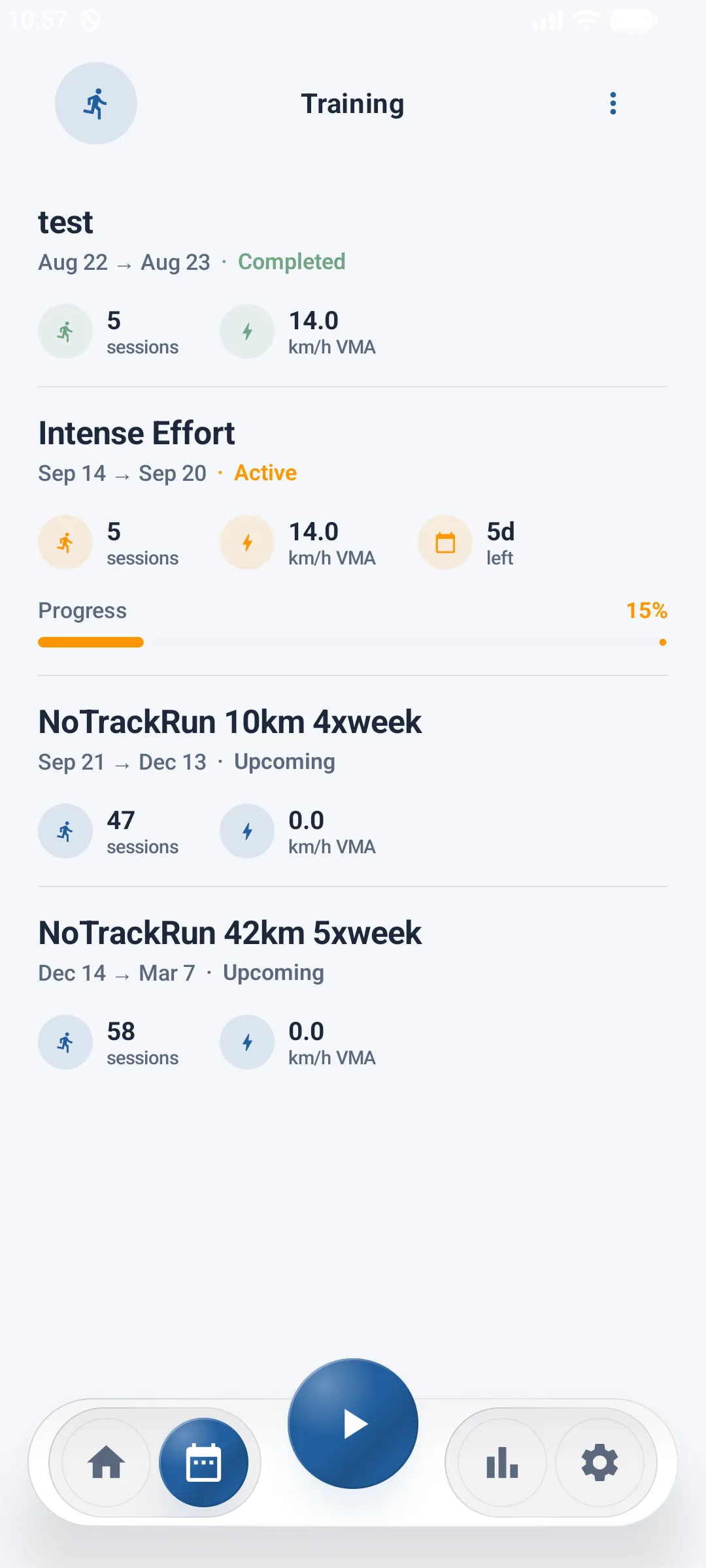
The main screen shows the list of all your training plans as cards. If you don't have any, a message invites you to create one.
Each plan card shows:
- The plan's name and period (start date → end date)
- A status badge: Active or Completed
- The number of sessions, the VMA used to calculate intensities, and — for an active plan — the number of days remaining
- For an active plan, a progress bar showing the percentage of sessions already completed
To add a new plan, tap Add Training in the menu at the top of the screen — you'll be taken to the training type picker (Personal or With Coach).
Plan detail — week-by-week navigation
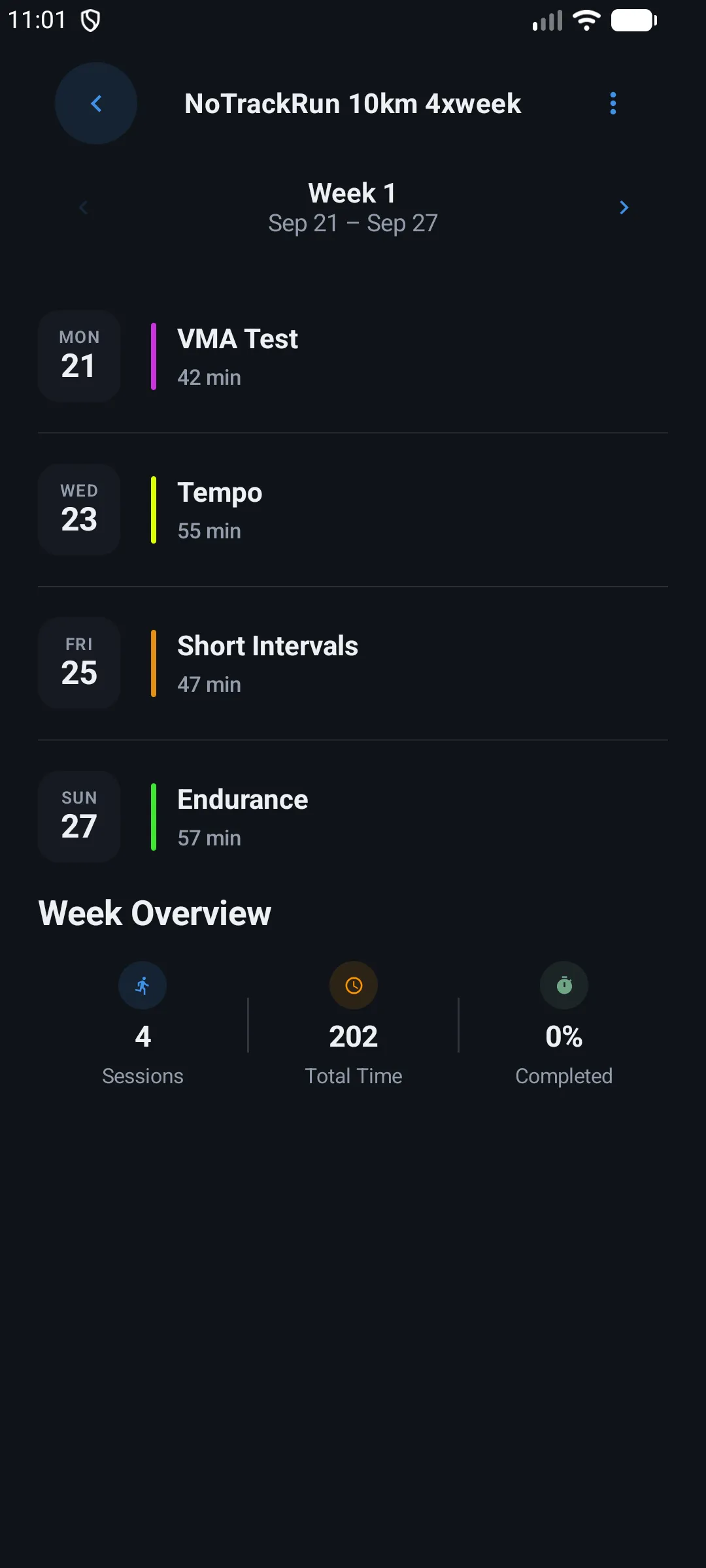
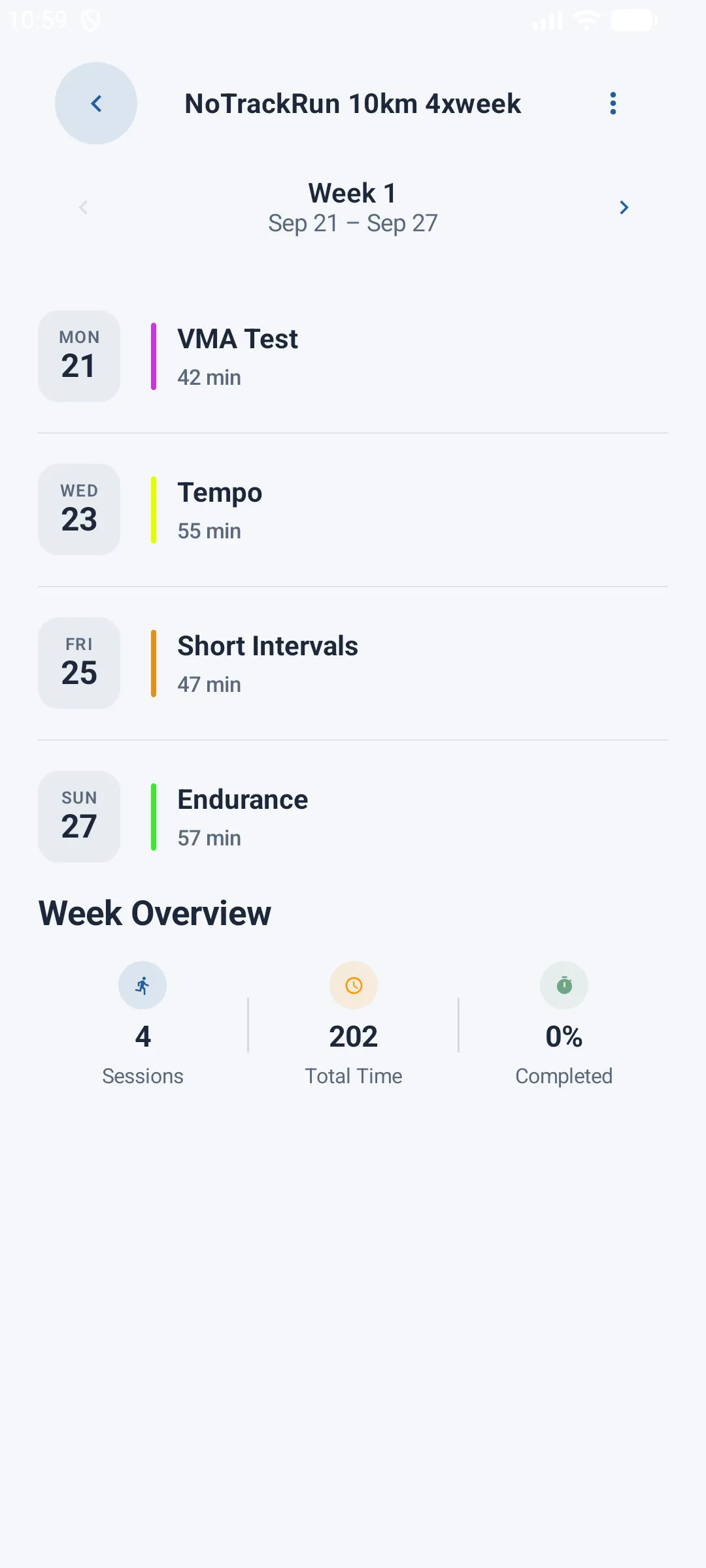
Selecting a plan from the list opens its detailed schedule, organized week by week. Arrows at the top of the screen let you move to the previous or next week.
For each week, the list of planned sessions is shown as cards, each with:
- The day and date
- The session's name / type
- The estimated duration
- A color indicator for the effort type
- Its status (done or not done)
Tapping a session opens its full detail (blocks, intensities, duration...) before you can start it.
Weekly summary
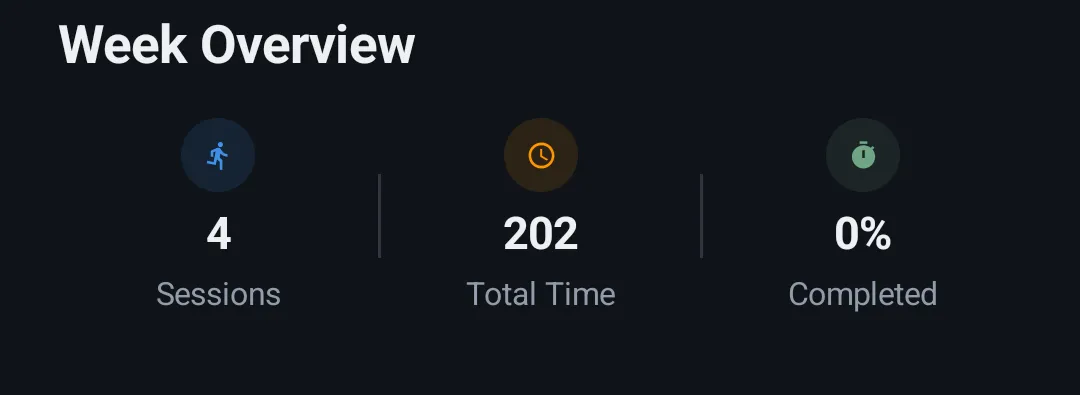
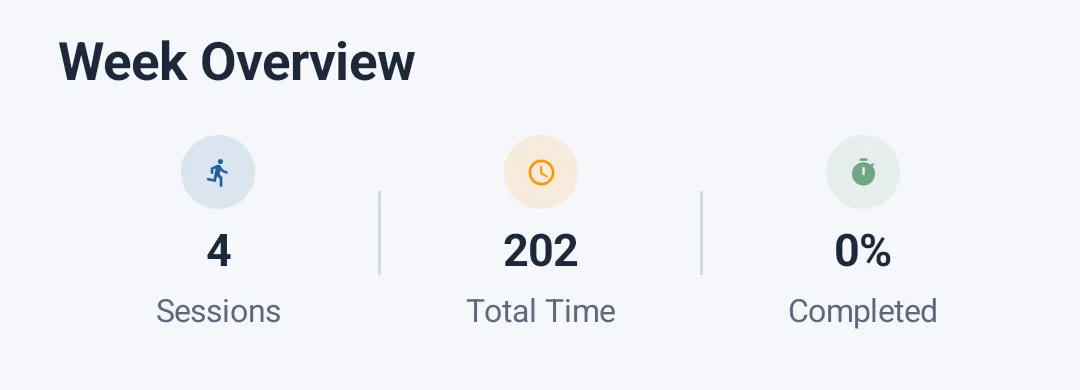
At the bottom of each week, a Week Overview card summarizes your stats for the period shown:
- The number of planned sessions
- The estimated total time
- The percentage of sessions completed
If no session is planned for the week being viewed, a message tells you so.
Editing or deleting a plan
From the plan detail screen, the Edit plan option in the top bar's menu lets you:
- Adjust your VMA (maximal aerobic speed) — this value is the basis for every training block's intensity in the plan. Changing it automatically recalculates the intensities across all sessions.
- Delete the plan entirely — possible regardless of plan type.
VMA editing is only available for a Personal plan. If your plan was created by a coach (With Coach), the VMA field is locked and a message invites you to contact your coach directly for any changes — only they can adjust your plan from the web platform.