Goals & Challenges
The Goals screen lets you set running challenges and track your progress day by day. You can either choose a goal from a list of predefined templates, or create your own custom goal.
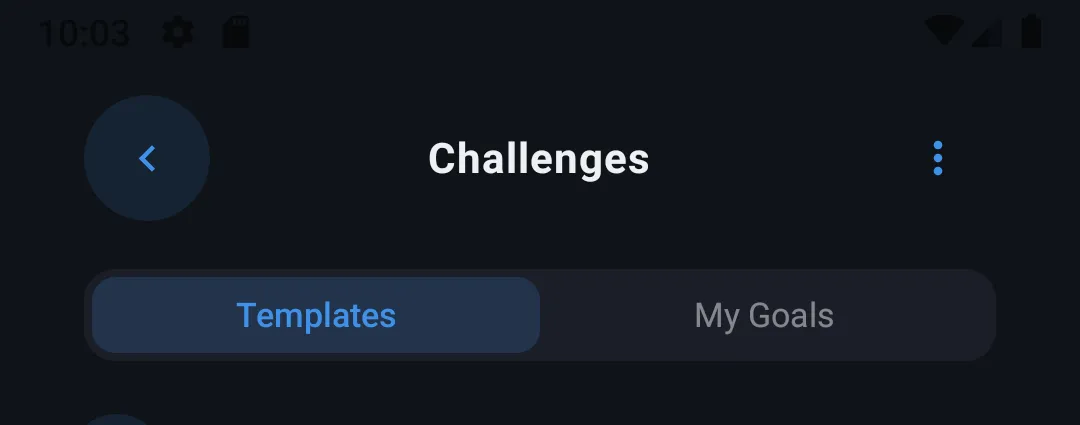
The two tabs
Two tabs at the top of the screen let you navigate:
- Template — the list of predefined goals, organized by category
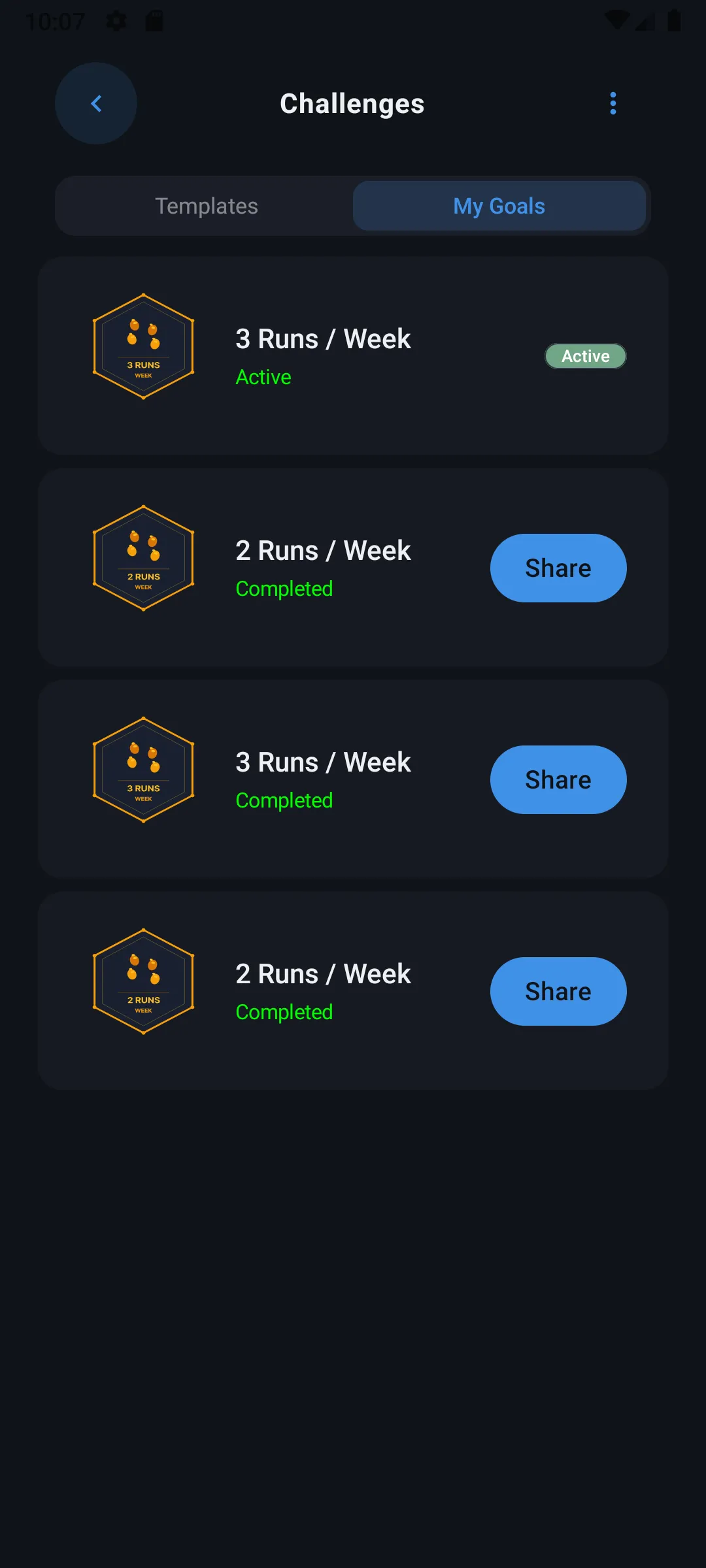
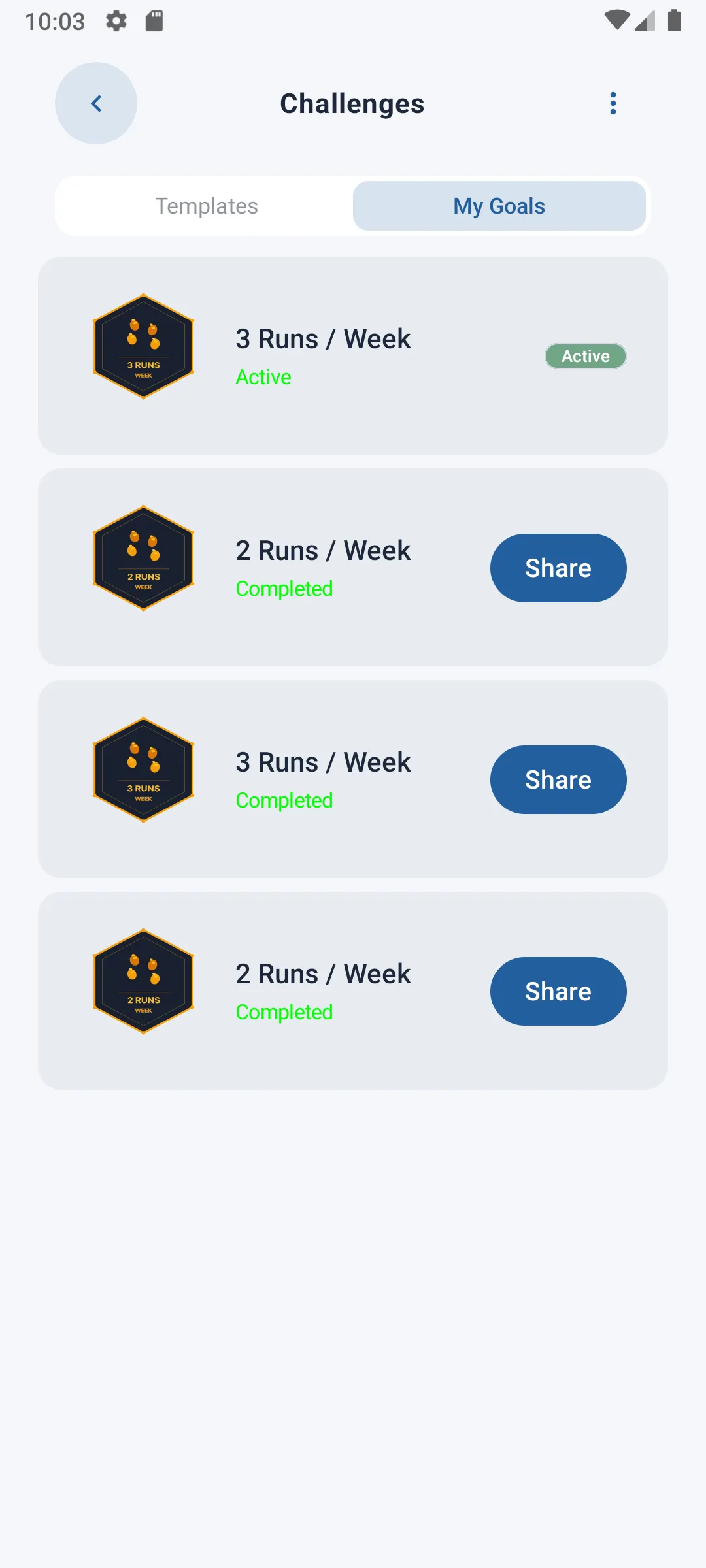
- My Challenge — the goals you've already started (ongoing or past)
Types of goals
Every goal belongs to one of three types:
- Distance — cover a given number of kilometers (e.g. "50 km in 30 days")
- Runs — complete a given number of runs (e.g. "10 runs in 14 days")
- Duration — accumulate a given running time (e.g. "5 hours of running in 21 days")
In the Template tab, goals are grouped by type, each section showing the available templates with their icon, name, target value, and duration.
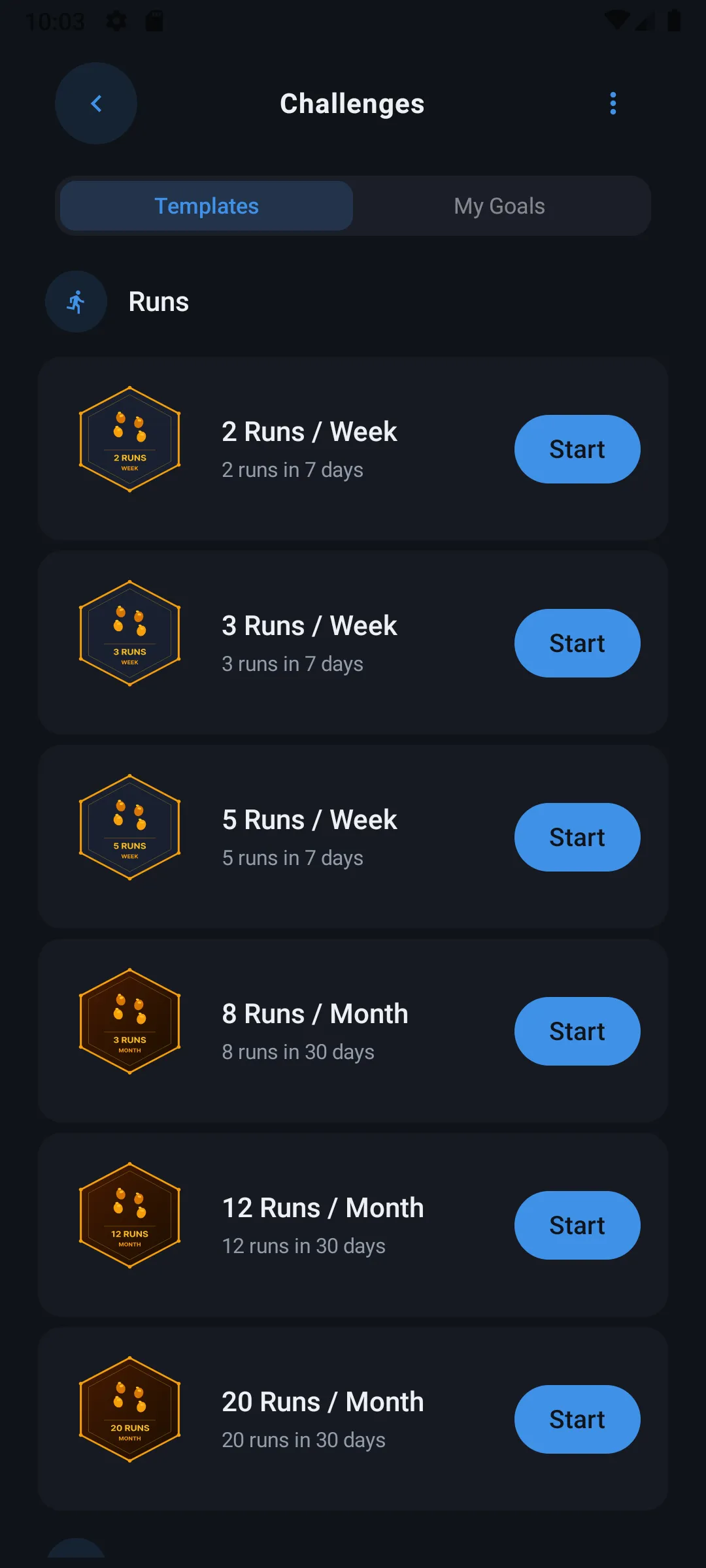
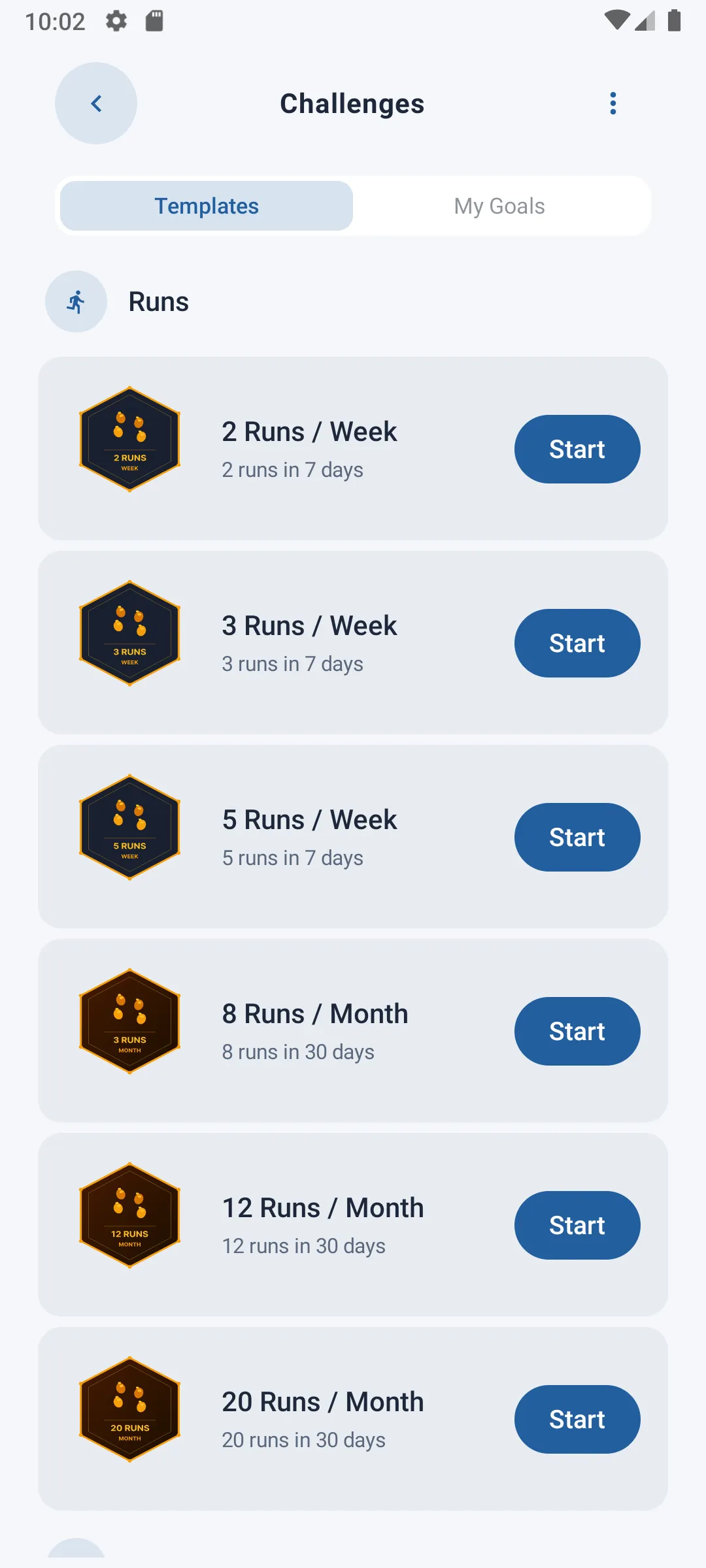
Starting a predefined goal
To start a goal:
- Select a template from the list
- You'll be asked to confirm
Important: only one goal can be active at a time. If you already have an active goal, starting a new template will automatically replace the current one — its progress will be lost. A confirmation message warns you before this happens.
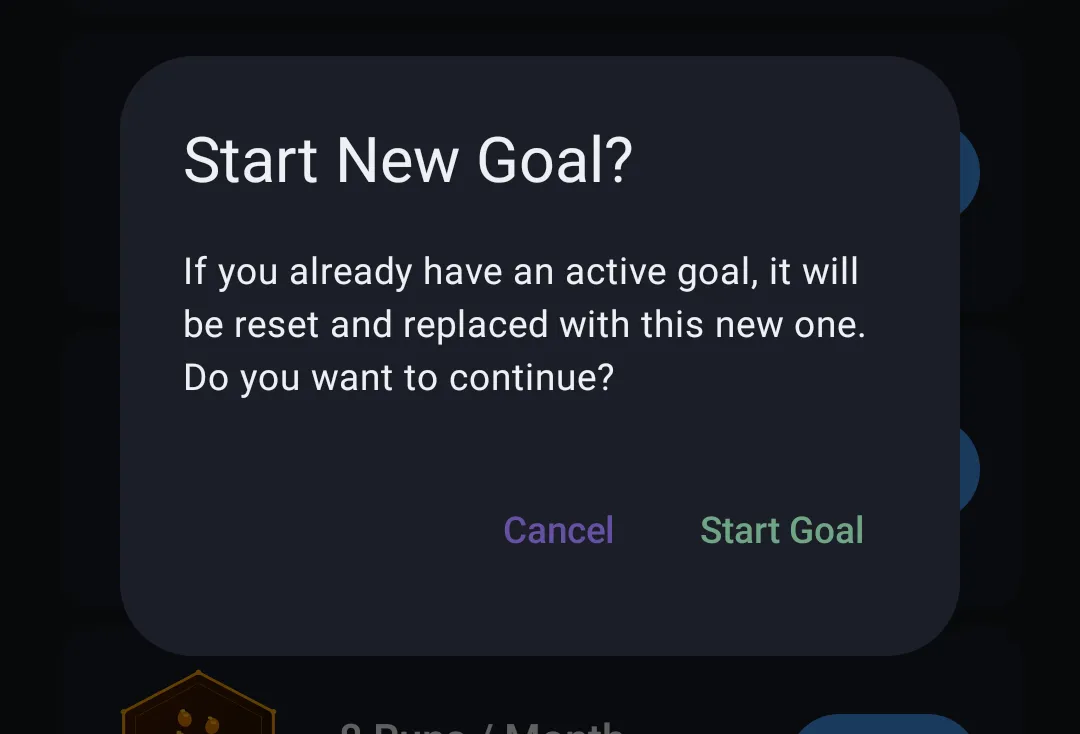
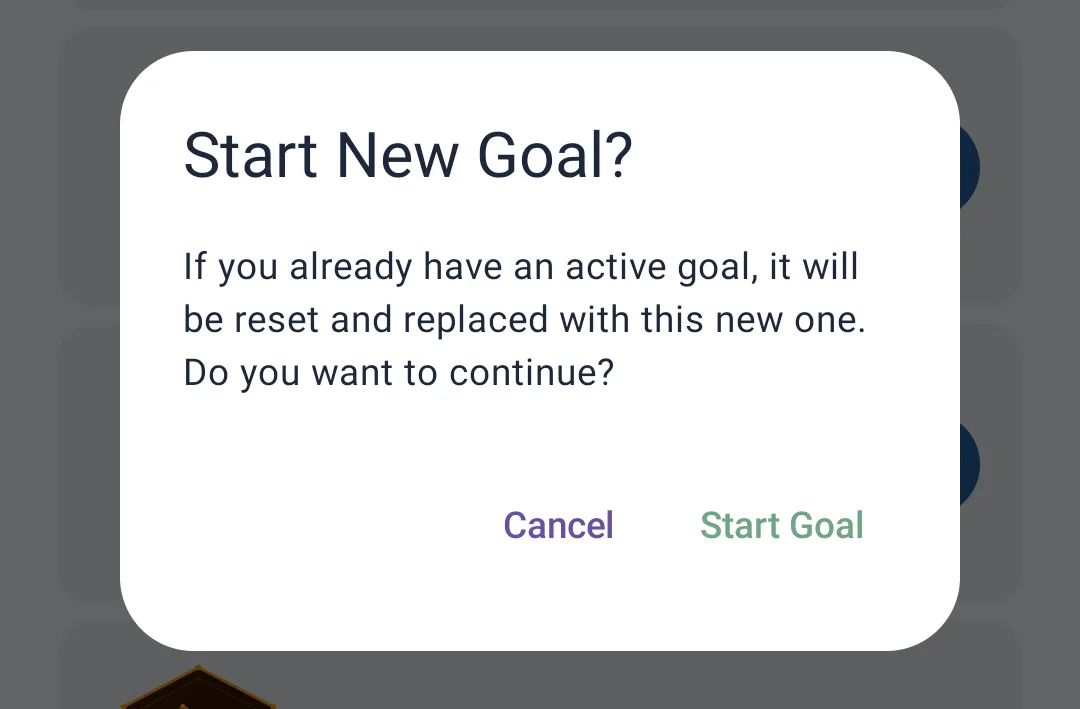
Once started, the goal appears in the My Challenge tab and on the home screen, with its progress updated automatically as you run.
Creating a custom goal
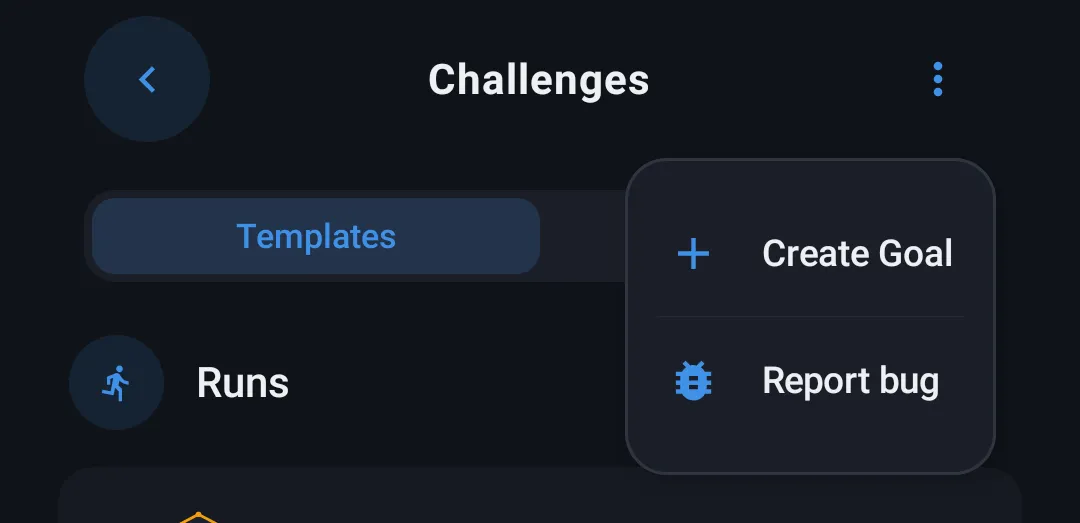
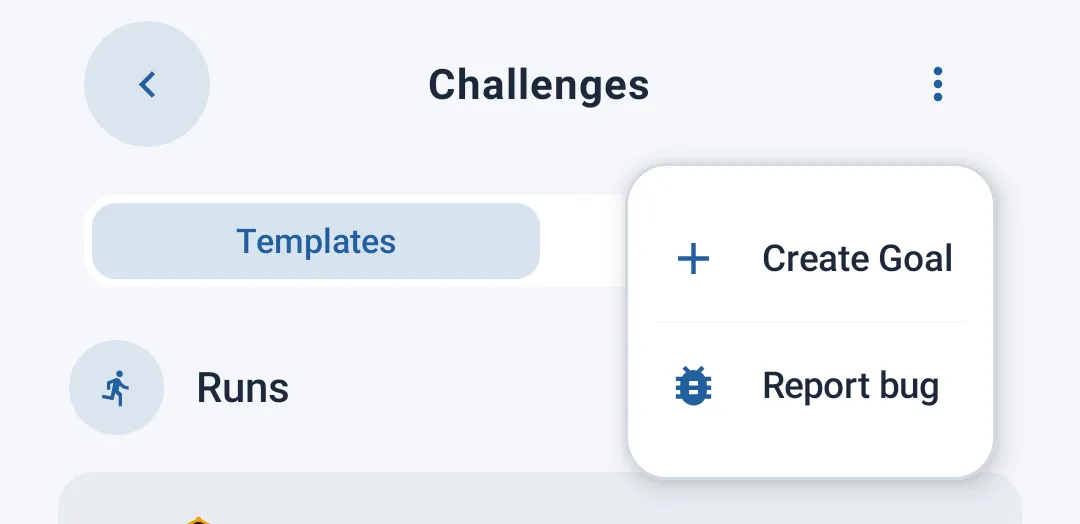
If no template matches what you're looking for, you can create your own challenge by tapping the (Create Goal) button at the top of the screen.
The creation screen lets you define:
| Field | Description |
|---|---|
| Goal Type | Choose your challenge's type: Distance, Runs, or Duration |
| Title | Give your goal a name |
| Target value | Depending on the chosen type: number of kilometers (wheel picker), number of runs (counter), or total duration (time picker) |
| Duration | The number of days you have to reach the goal |
| Badge | Choose the badge/icon representing your goal once completed |
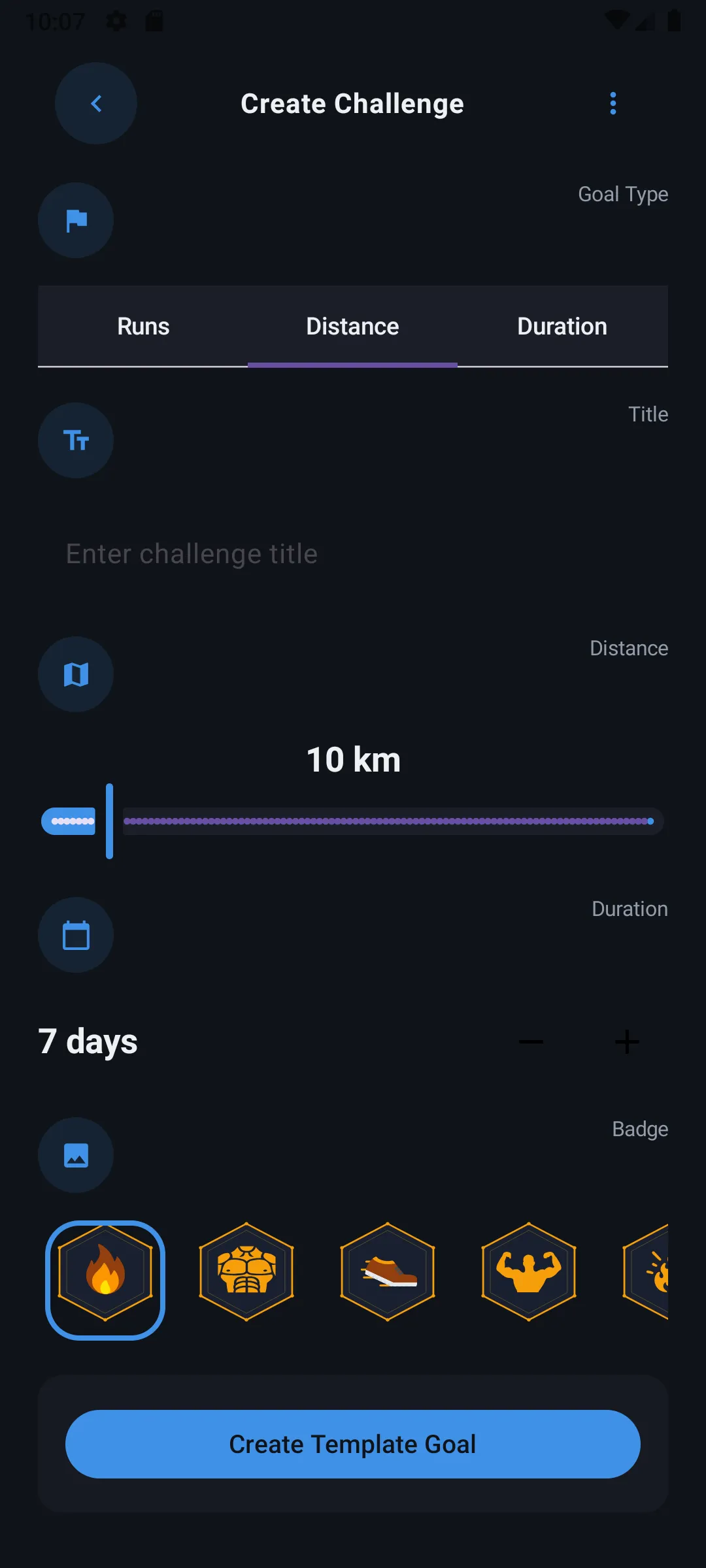
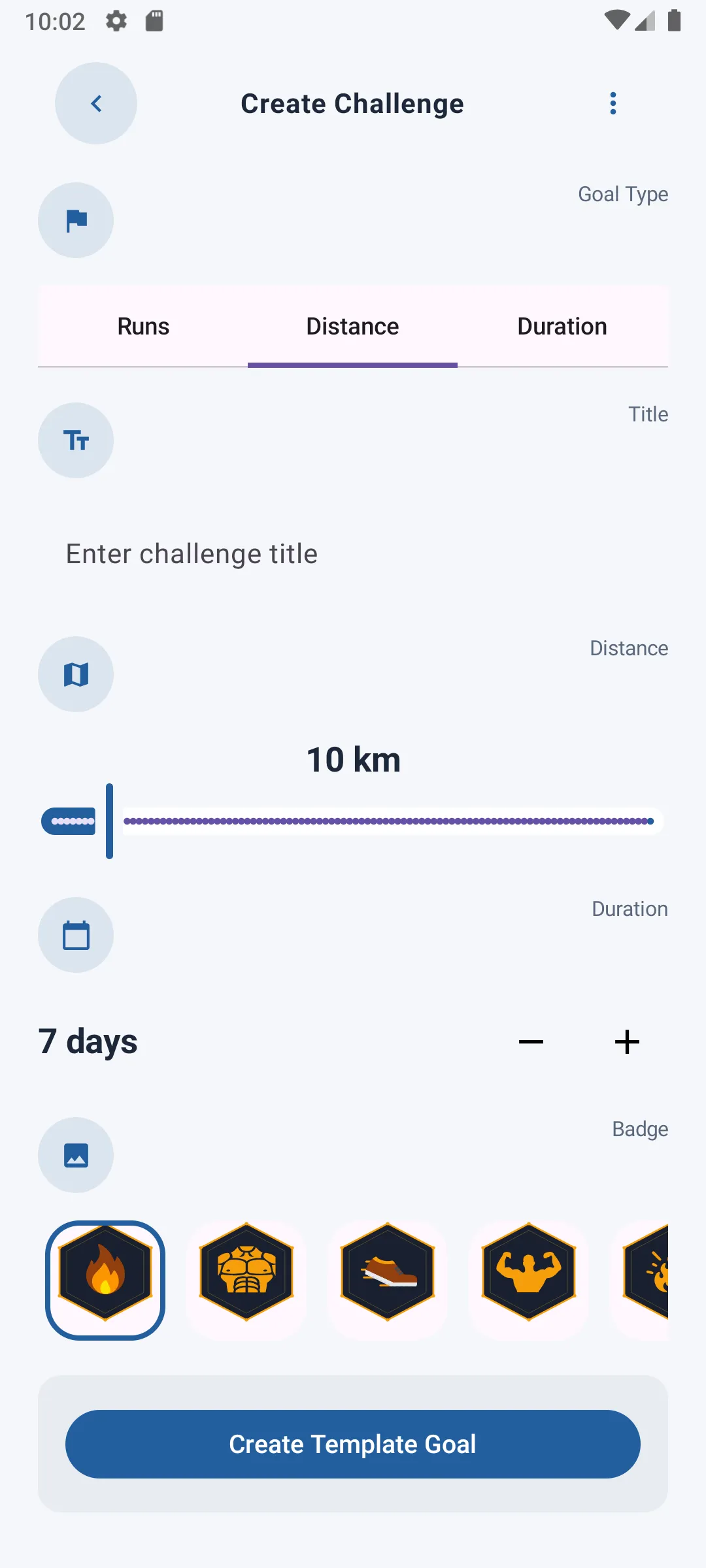
Once all fields are filled in, tap Create Template Goal to save your custom goal. It will then appear in the list of available templates, ready to be started like any other.
Tracking your goals
In the My Challenge tab, find the list of every goal you've started, each showing:
- Its current progress as a percentage
- The value reached compared to the target value
- The number of days remaining
Sharing a completed goal
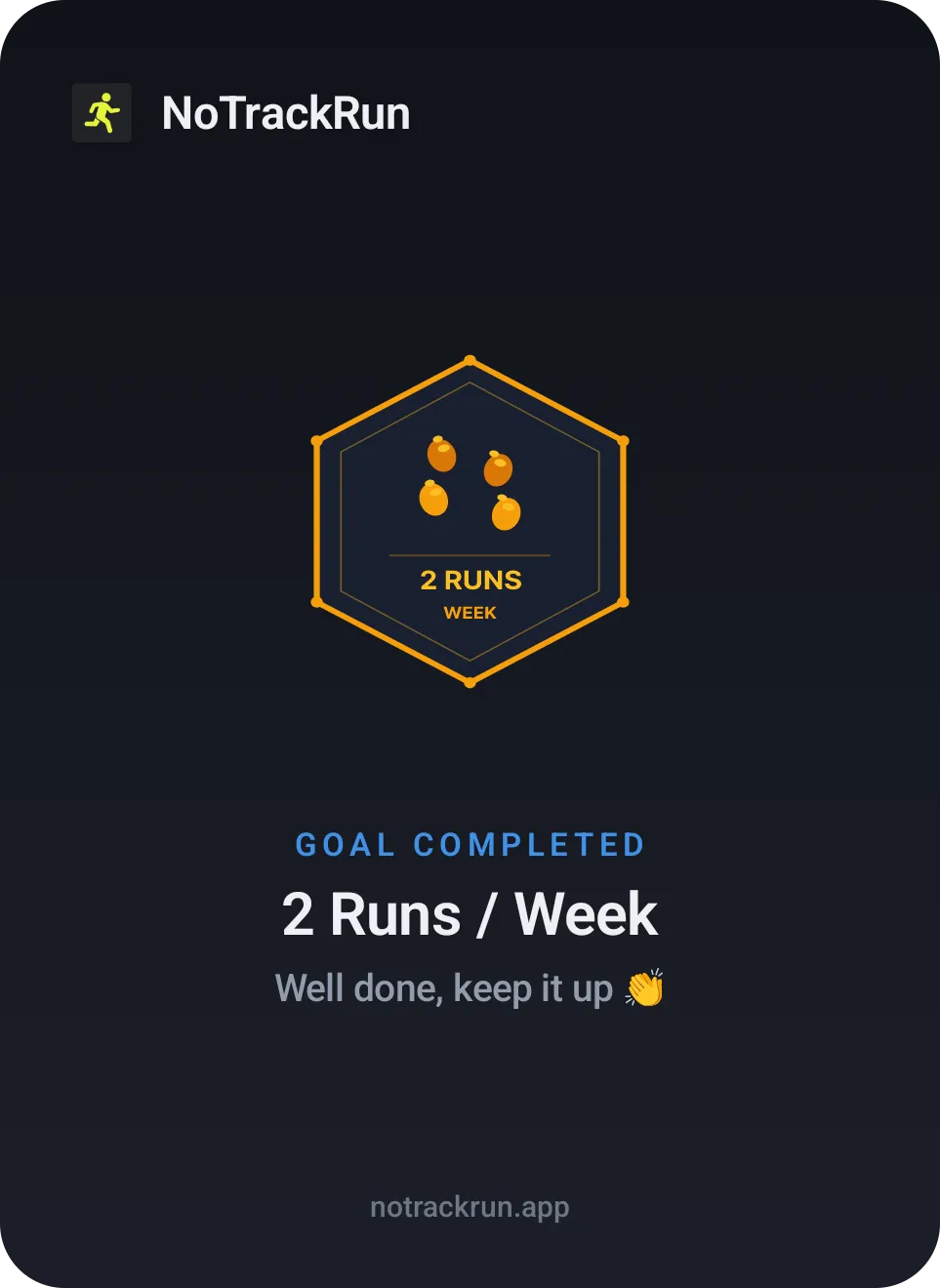
When a goal is reached, you can share it as a summary image showing your badge, the goal's name, and a congratulatory message — great for sharing on social media or with your coach.