Live Guided Training Session
Once a session starts, the app automatically guides you through every exercise block, with voice announcements and a display adapted to the type of effort required.
Waiting for GPS signal
Just like a classic run, the app waits for a sufficiently accurate GPS signal before starting, with a waiting screen followed by a short "Ready, Go!" countdown.
Two block types, two displays
Depending on the current block type, the screen adapts automatically:
Running blocks
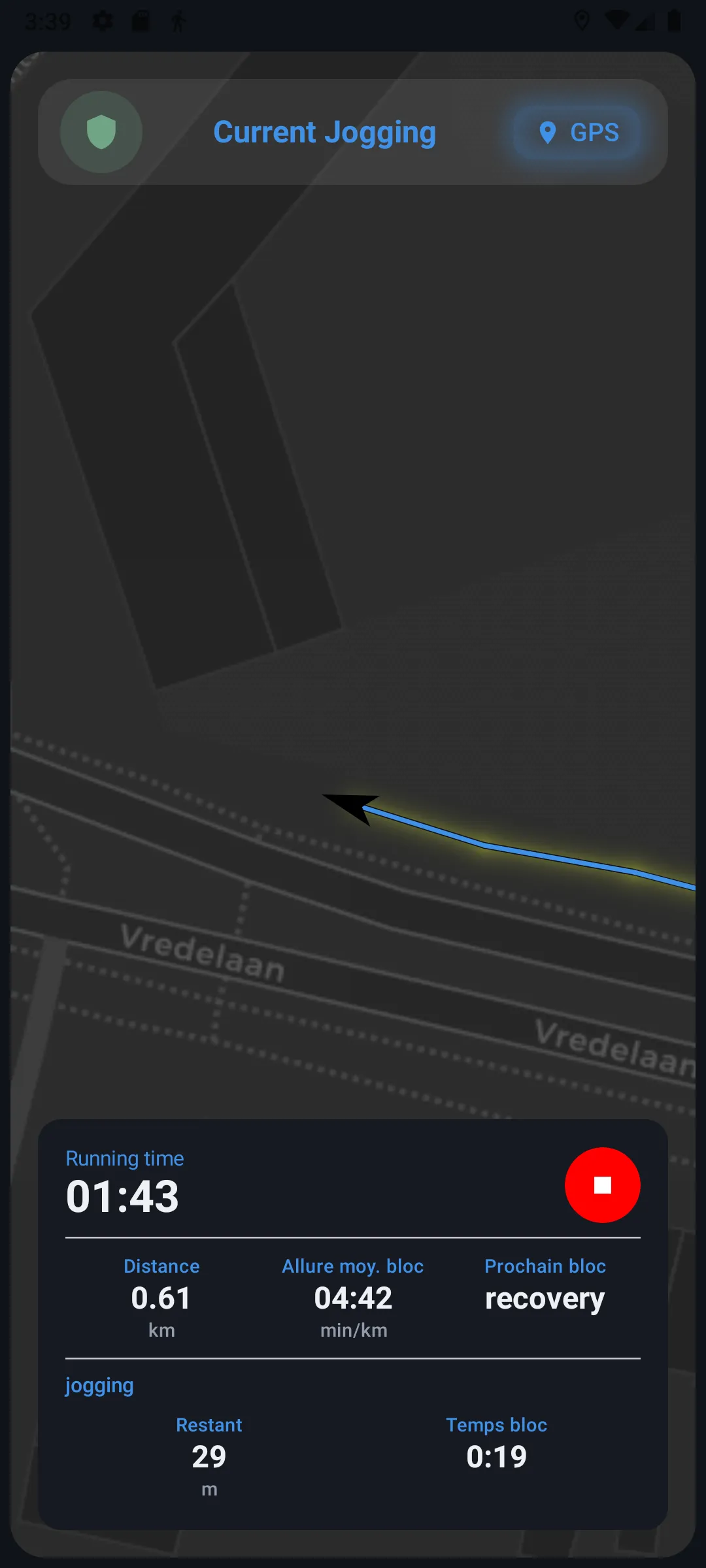
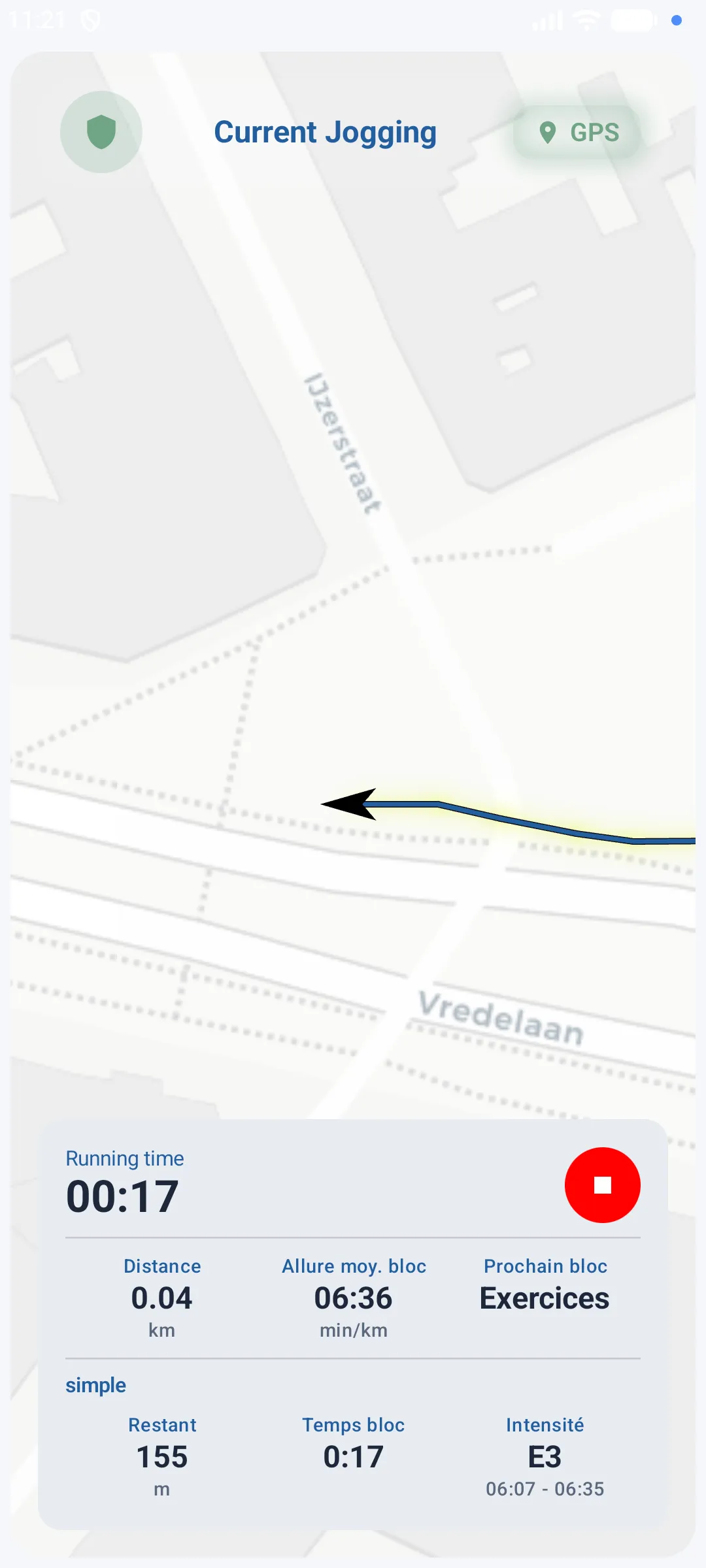
For blocks involving running (effort, recovery, repetitions...), the display stays centered on the map and GPS tracking, with a stats panel at the bottom.
Conditioning blocks
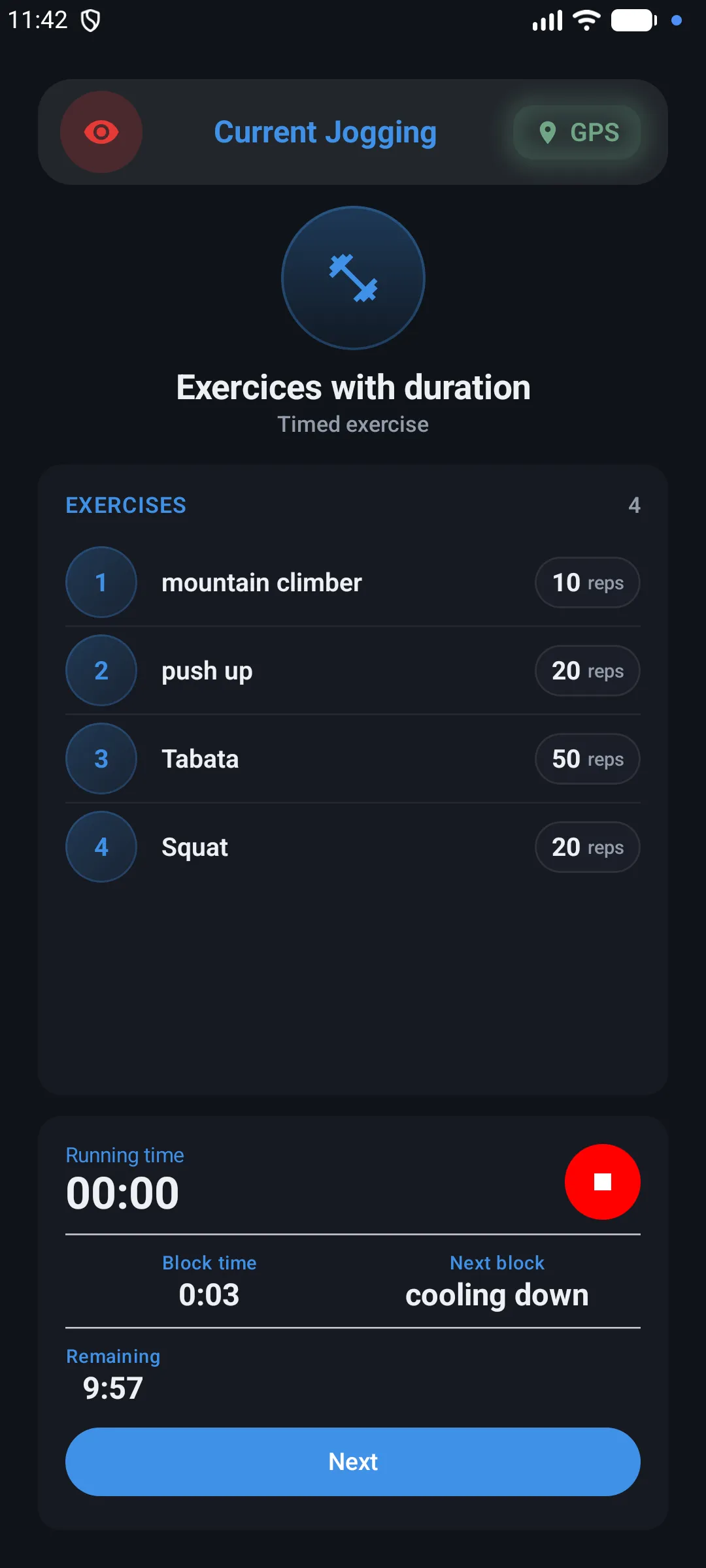
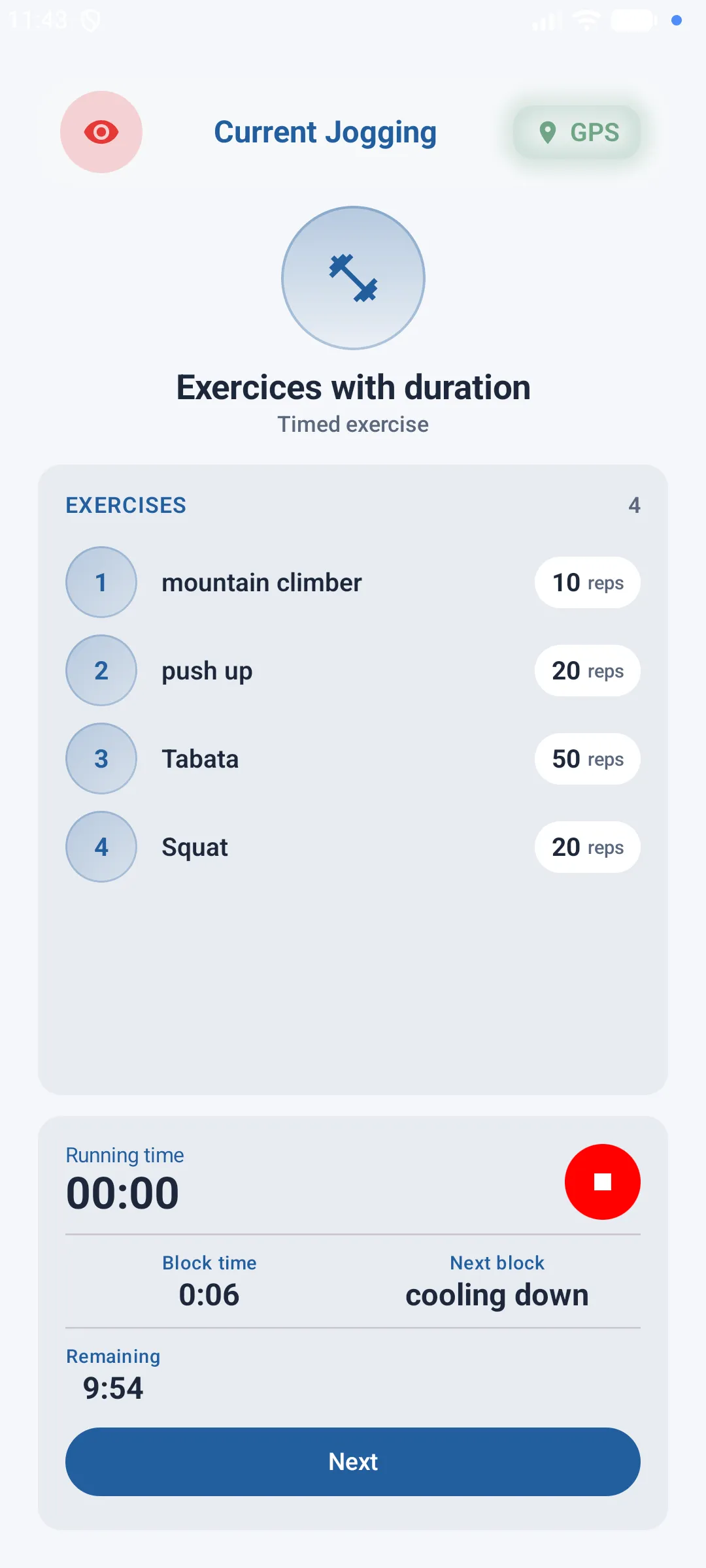
For floor exercise blocks (push-ups, squats, planks...), the map disappears in favor of a dedicated screen showing:
- The name of the current exercise
- The list of movements to perform with their number of repetitions
Live stats panel
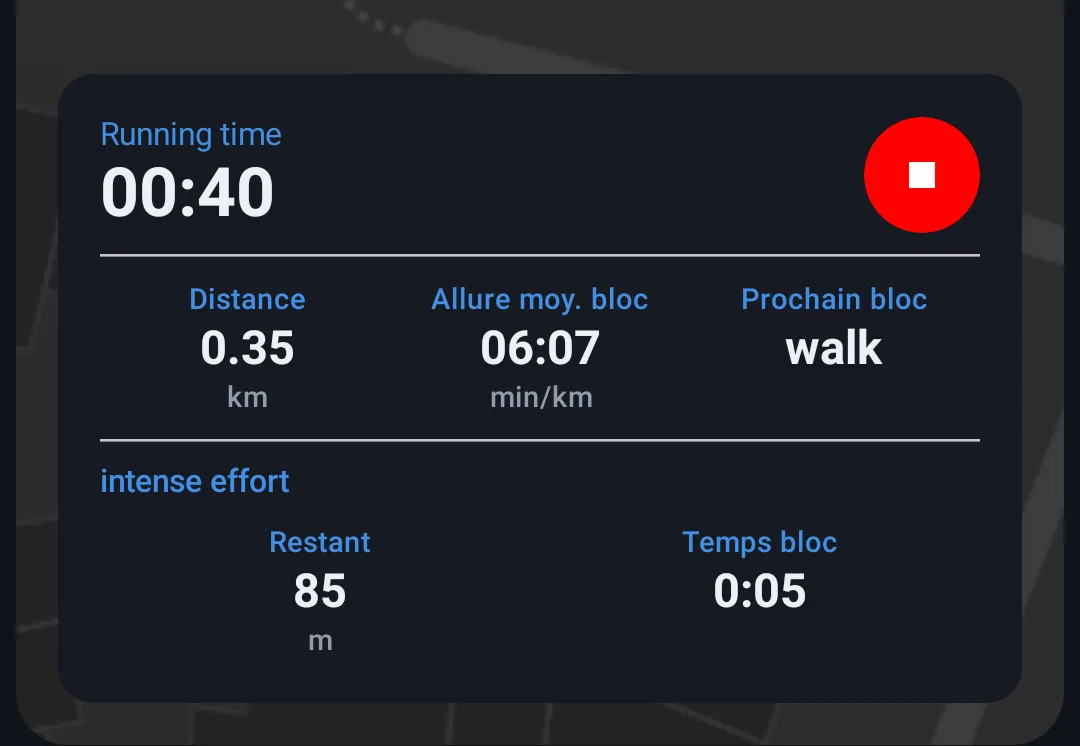
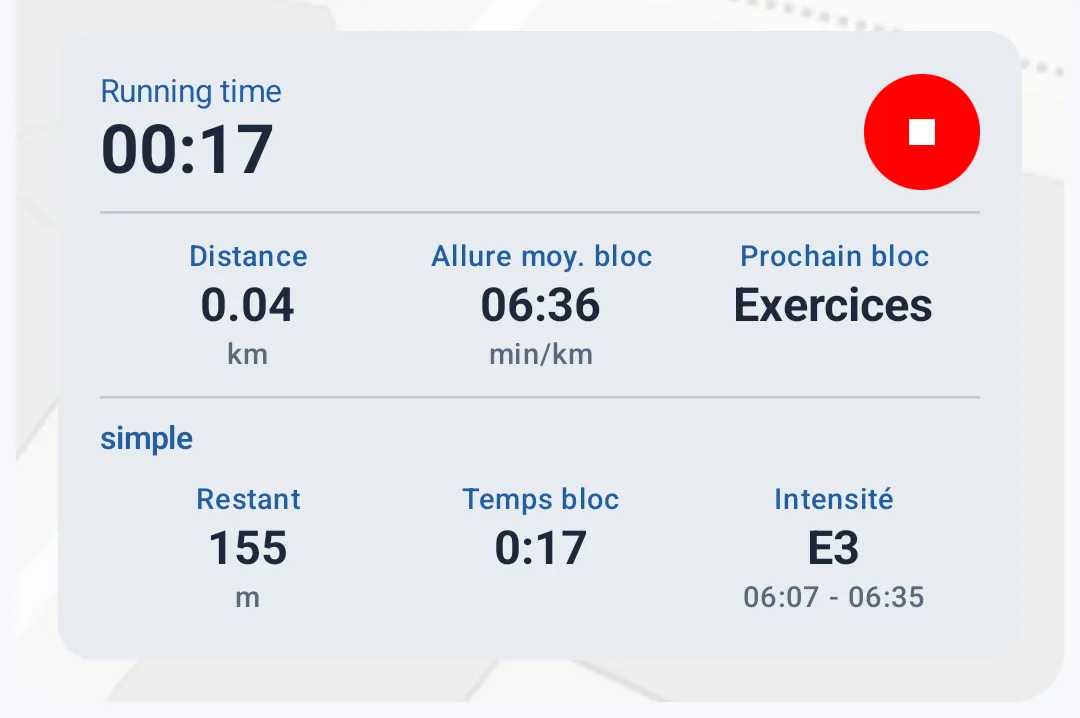
During a running block, the panel constantly shows:
- The session's total time
- The distance covered
- The current block's average pace
- The next block coming up
- The name of the current block
Then, depending on the block type:
- Simple block — time or distance remaining before the block ends, time already spent on it, and the target intensity (with the corresponding pace calculated from your VMA)
- Repeated block — in addition to the above, the current repetition number (e.g. 2/6) and a clear indication of whether you're in an Effort or Recovery phase
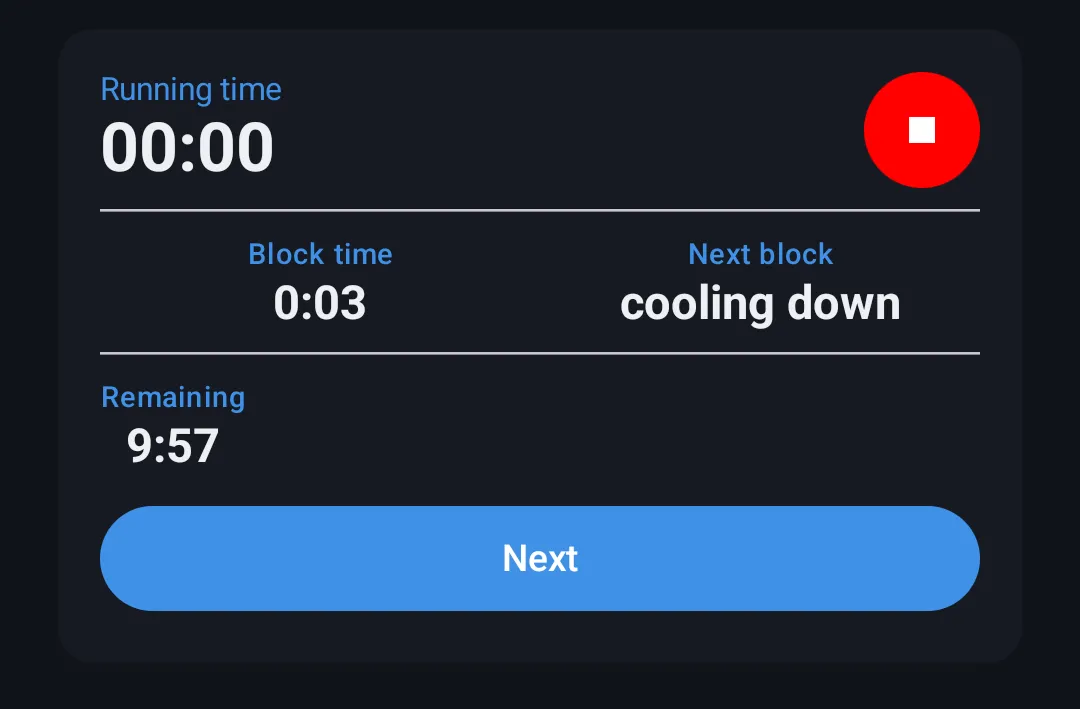
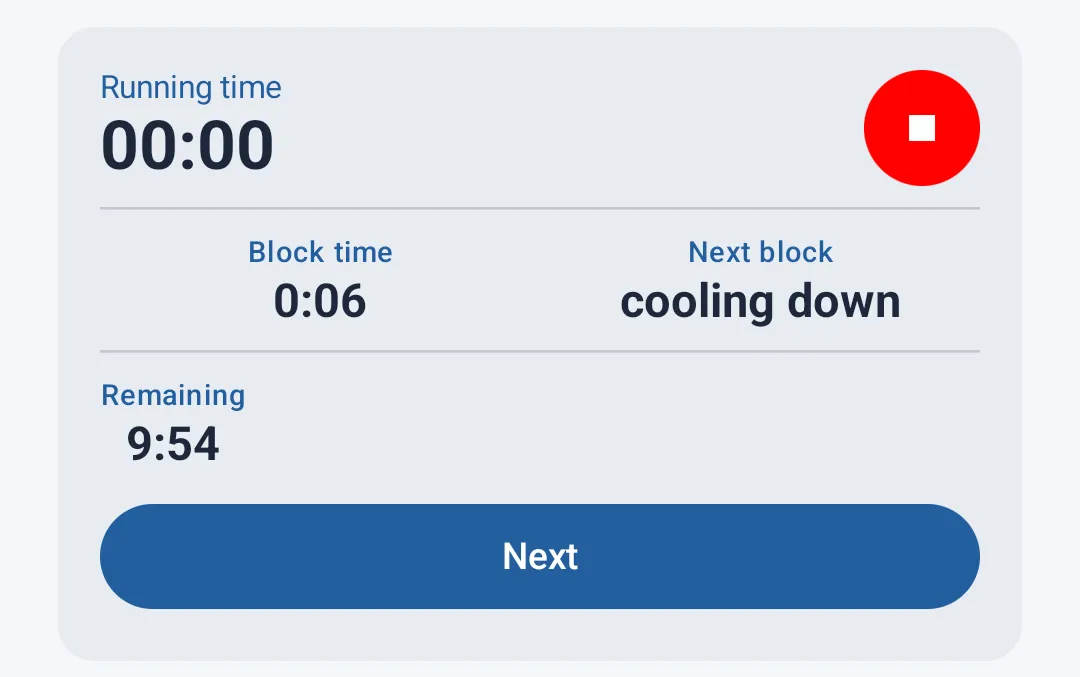
During a conditioning block, the panel instead shows:
- Time spent on the block
- The next block coming up
- Depending on the exercise type: either an automatic countdown, or a button to manually confirm the exercise is finished
Voice announcements & automatic progression
At each phase change (new block, effort → recovery, new repetition...), the app announces the upcoming goal out loud — for example the distance or duration to cover, and the required intensity. This lets you follow your session without constantly looking at the screen.
Progression between running blocks is fully automatic: as soon as a block's goal (distance or duration) is reached, the app records the result and moves straight into the next phase, with a new voice announcement.
Conditioning blocks — two behaviors
Conditioning blocks (push-ups, squats...) behave differently depending on whether they're timed:
- Fixed duration (e.g. "2 minutes of plank") — a countdown is shown and the block ends automatically once the time is up. A button remains available if you want to move to the next block early.
- No duration (e.g. "20 push-ups, 20 sit-ups") — there's no automatic end. You tap the Next button once you've finished the exercise to confirm and move on.
Block success or failure
At the end of each running block with a target intensity, the app automatically compares your actual average speed to the expected target (calculated from your VMA). If your pace stayed close enough to the target, the block is marked successful; otherwise it's marked unsuccessful. These results are then visible in detail in the session's sheet once it's finished.
Live Activity during a guided session
Just like a classic run, a Live Activity is shown on your lock screen and in the Dynamic Island for the whole duration of your session. Its content adapts to the current block type.
During a running block
- The name of the current block
- A clear Effort or Recovery indicator, with a dedicated icon and color (running or walking)
- The number of repetitions done out of the total, if the block has any
- Your current pace, the time spent on the block, and the target pace to hold
- Depending on the block, either the distance remaining or the time remaining before the phase ends
During a conditioning block
- A message inviting you to unlock your screen to see the exercise's detail
- The name of the current block/exercise
- If the exercise is timed, the time remaining before it ends automatically
In the Dynamic Island
A compact version of this information stays visible at all times (current block name and remaining time/distance or exercise time), with an even more minimal version (icon only) when the island is minimized.
Link with History and Classic Run
Technically, starting a guided training session also starts a classic run in the background. This means your entire session — from the first to the last block — is recorded as a full run, accessible afterwards from History just like any other run. You'll find the full route, distance, and time covering your whole session there, in addition to the block-by-block detail available in the session's own sheet.
No pausing during a guided training session
Unlike a classic run, it is not possible to pause a guided training session. The session automatically progresses from one block to the next — only a full stop (Stop button) is possible.
What happens if you stop mid-session?
The outcome depends on when you stop the session:
| Moment of the stop | Result | Can it be restarted? |
|---|---|---|
| Before finishing the 1st block | Session marked as not done | ✅ Yes |
| After finishing at least 1 block | Completed blocks are saved, session marked as done | ❌ No |
End of session
Once the last block is completed, the session ends automatically: the run is saved and you're taken to the detailed results sheet for the session.
You can also stop the session manually at any time by tapping the Stop button — blocks already completed remain saved according to the rules described above.
A conditioning block with no fixed duration can't end automatically — you must manually confirm each exercise to progress through the session.