Settings
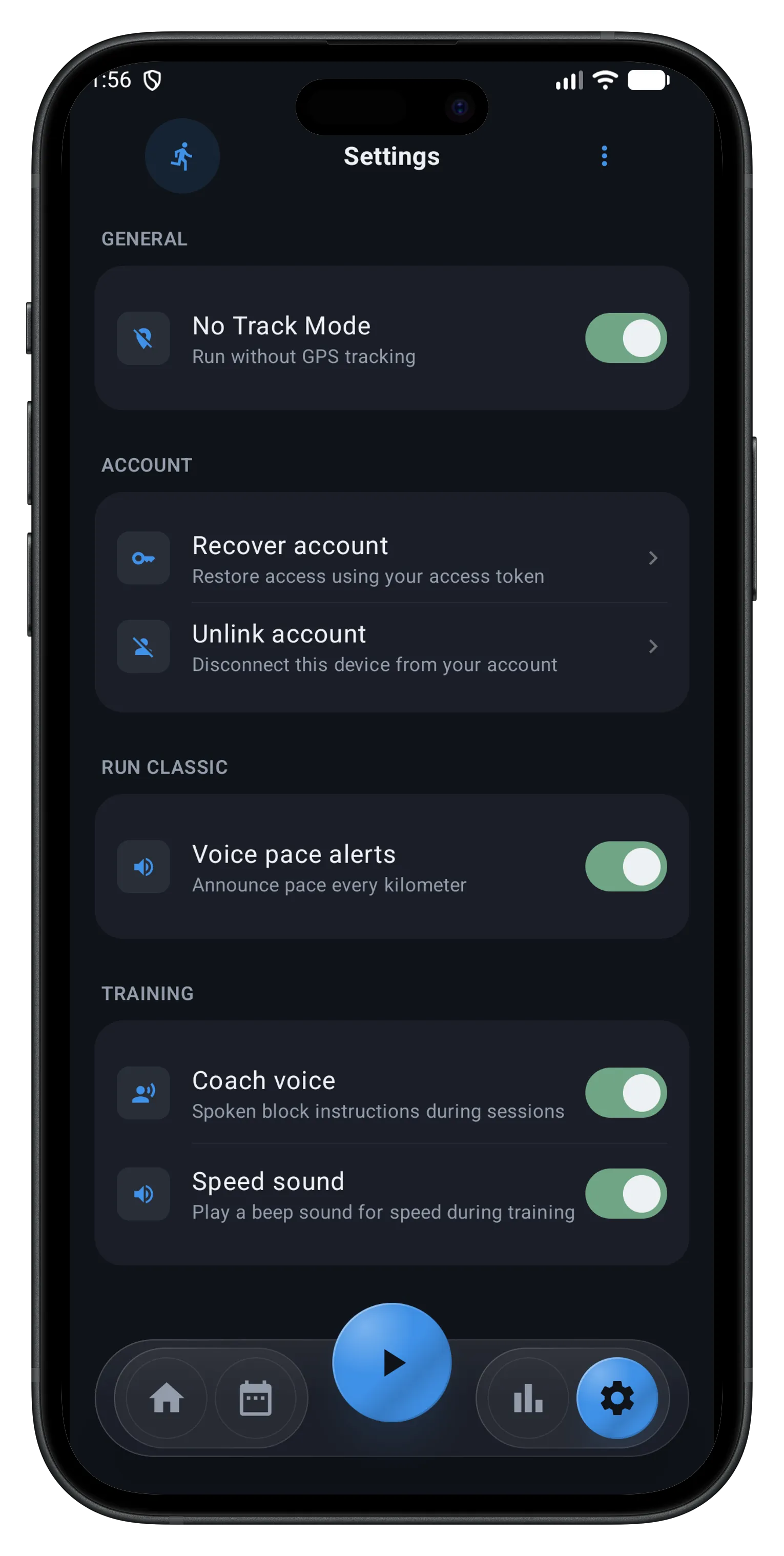
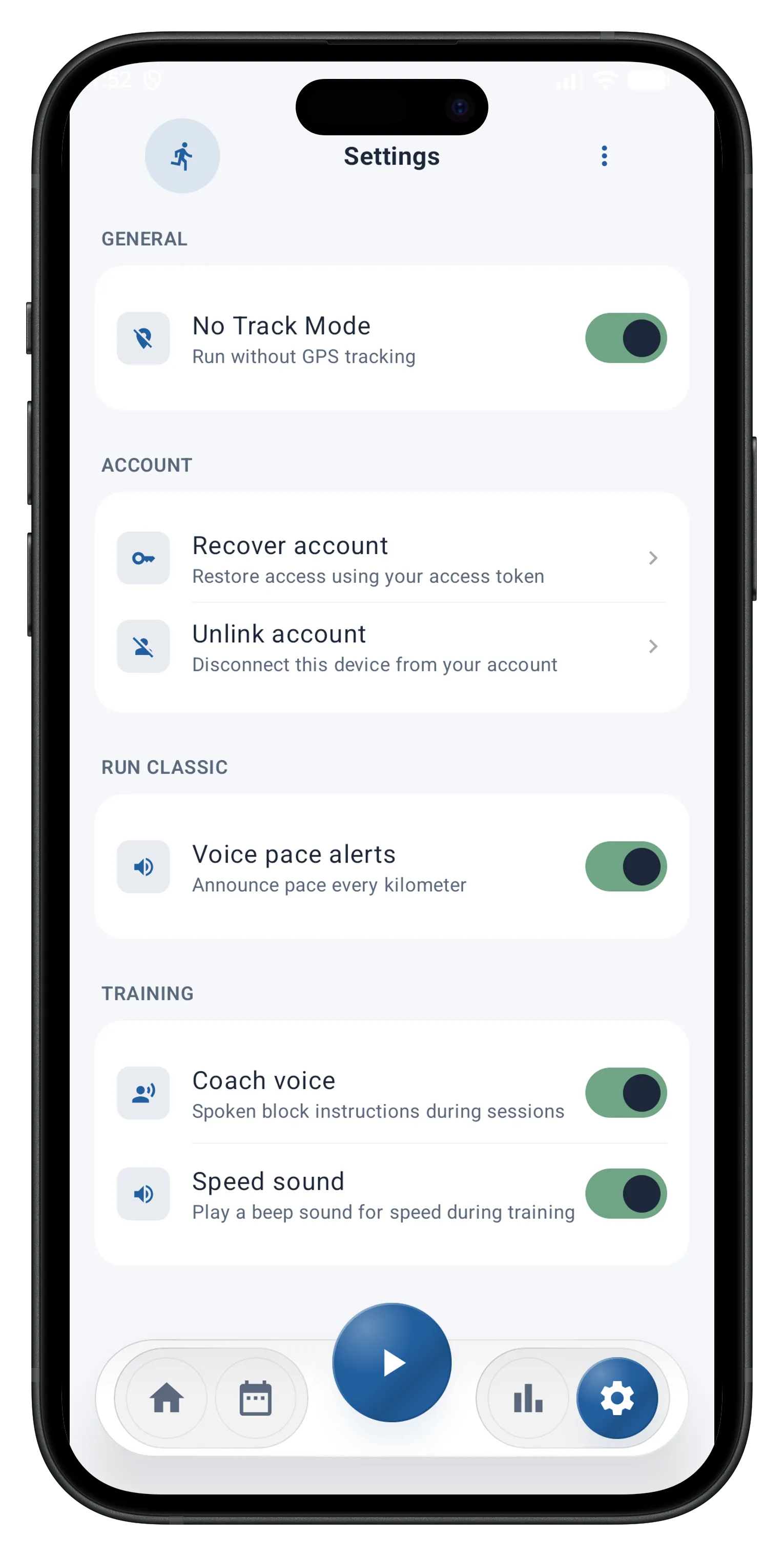
The Settings screen centralizes all of the app's settings, organized by category.
General
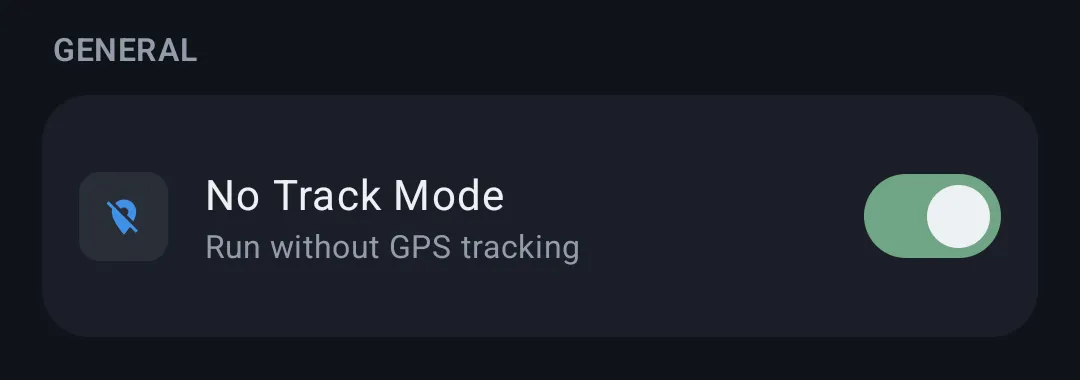
- No Track Mode — turns on anonymity mode by default for your runs; while enabled, your runs are no longer GPS-tracked until you manually turn it off
Account
The options in this section only apply to users following a With Coach training plan — i.e. whose account is linked to a coach via the web platform. If you use the app in Personal mode (no coach), this section has no use for you.
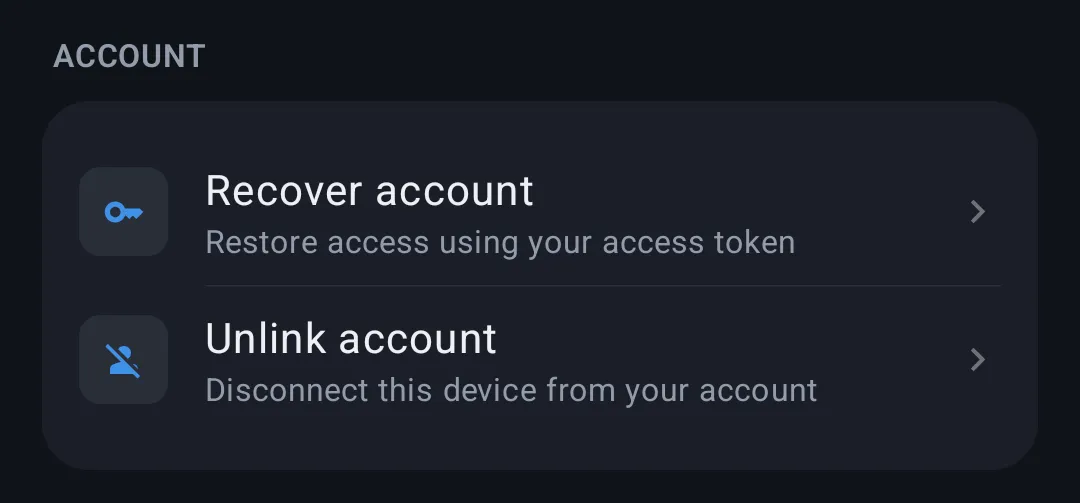
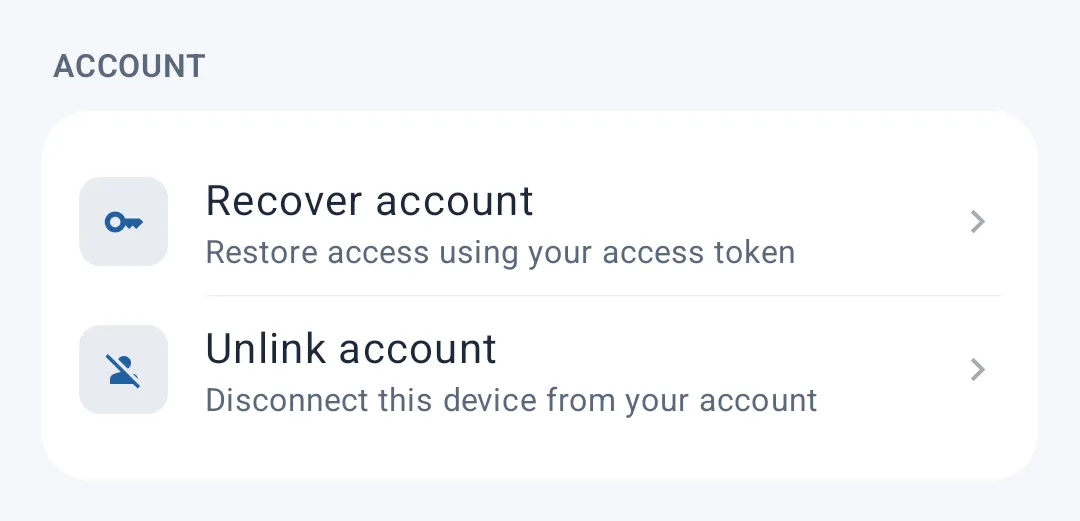
- Recover account — restore access to your coach-linked account using your access token, useful when you change devices or reinstall the app while keeping your link to your coach
- Unlink account — disconnects this device from your coach-linked account
Unlinking your account also deletes every training plan assigned by your coach on this device. You'll need your access token again to reconnect. A confirmation is required before proceeding.
Run Classic
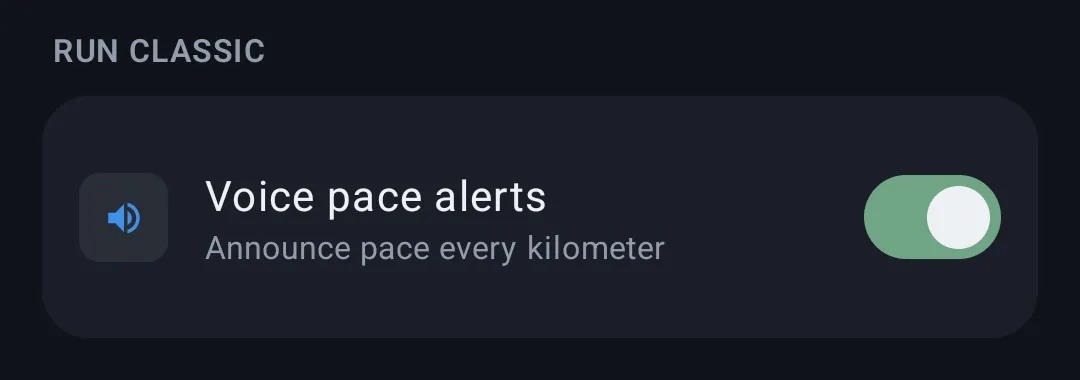
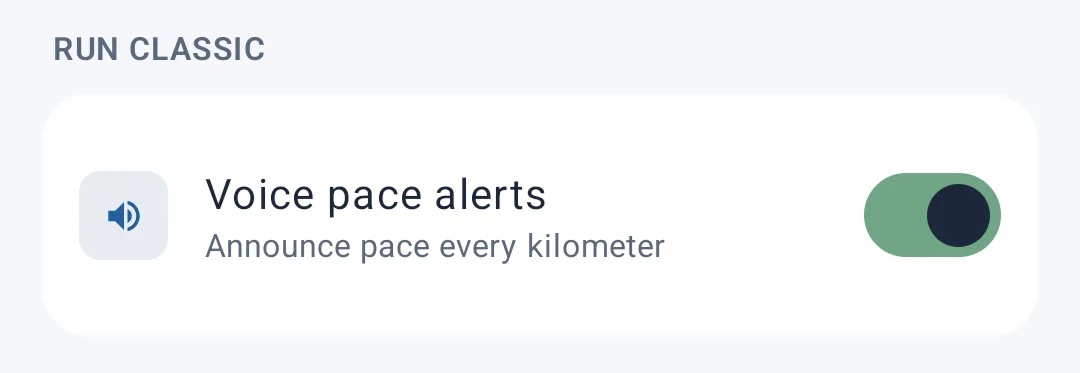
- Voice pace alerts — when enabled, the app announces your pace out loud at every kilometer during a classic run
Training
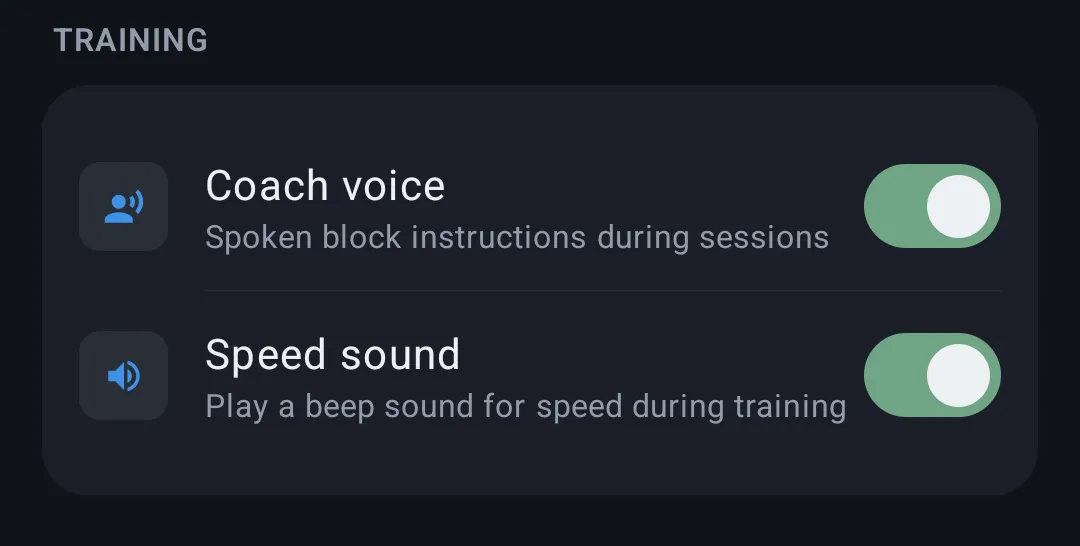
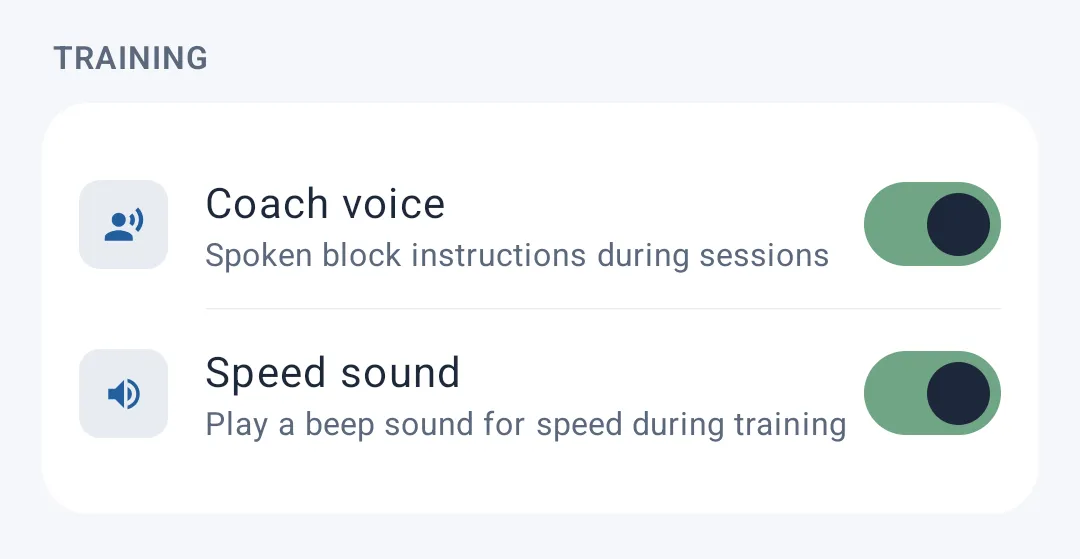
- Coach voice — turns on voice instructions detailing each block during your guided training sessions (goal, intensity...)
- Speed sound — plays a sound (beep) tied to your speed during training
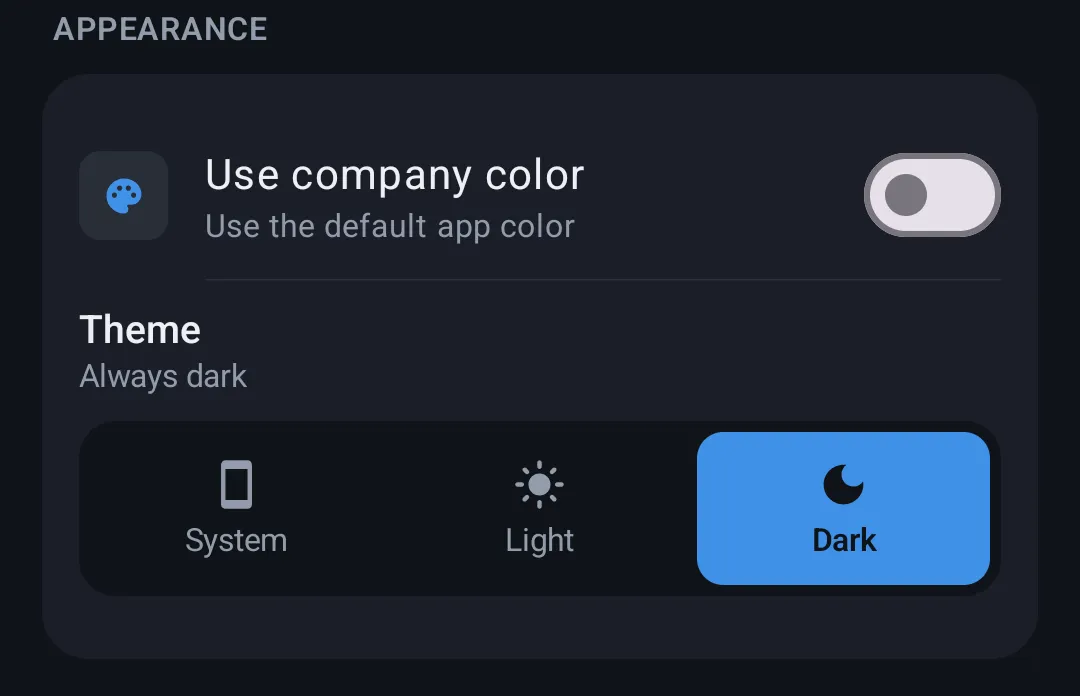
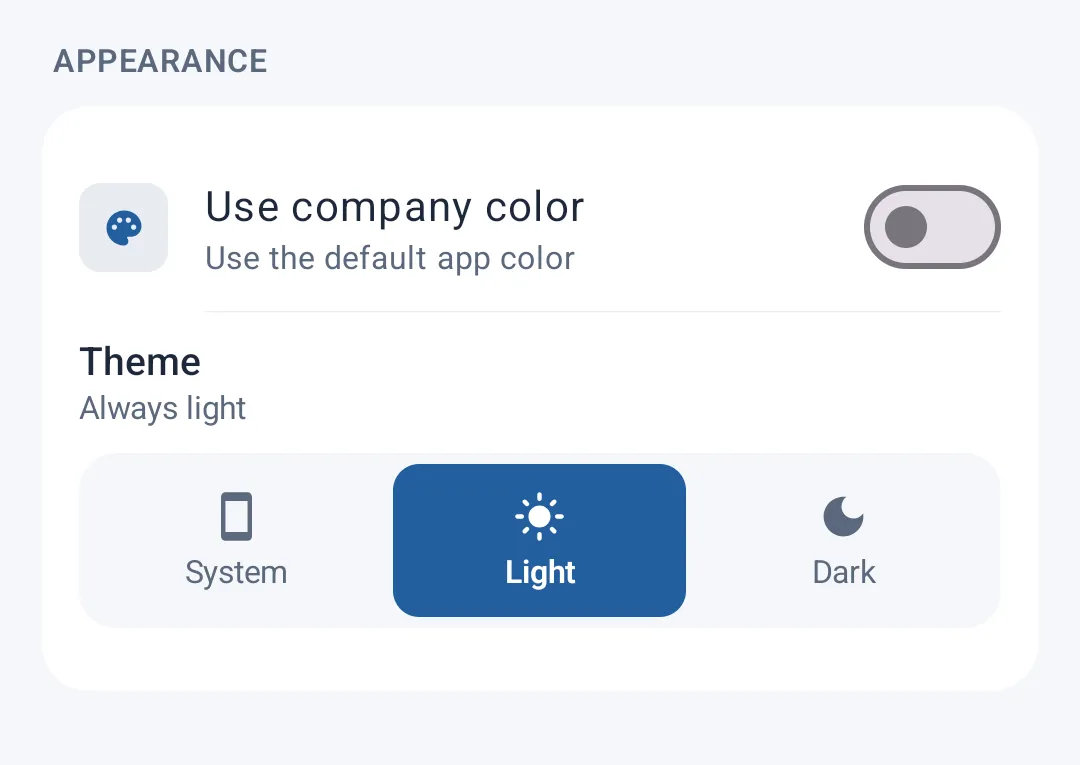
Appearance
- Theme — choose between Light, Dark, or System (automatically follows your device's setting)
- Use company color — if your account is linked to a coach/organization, this applies that organization's accent color throughout the app. If disabled, the app's default color is used instead.
Recovering your account
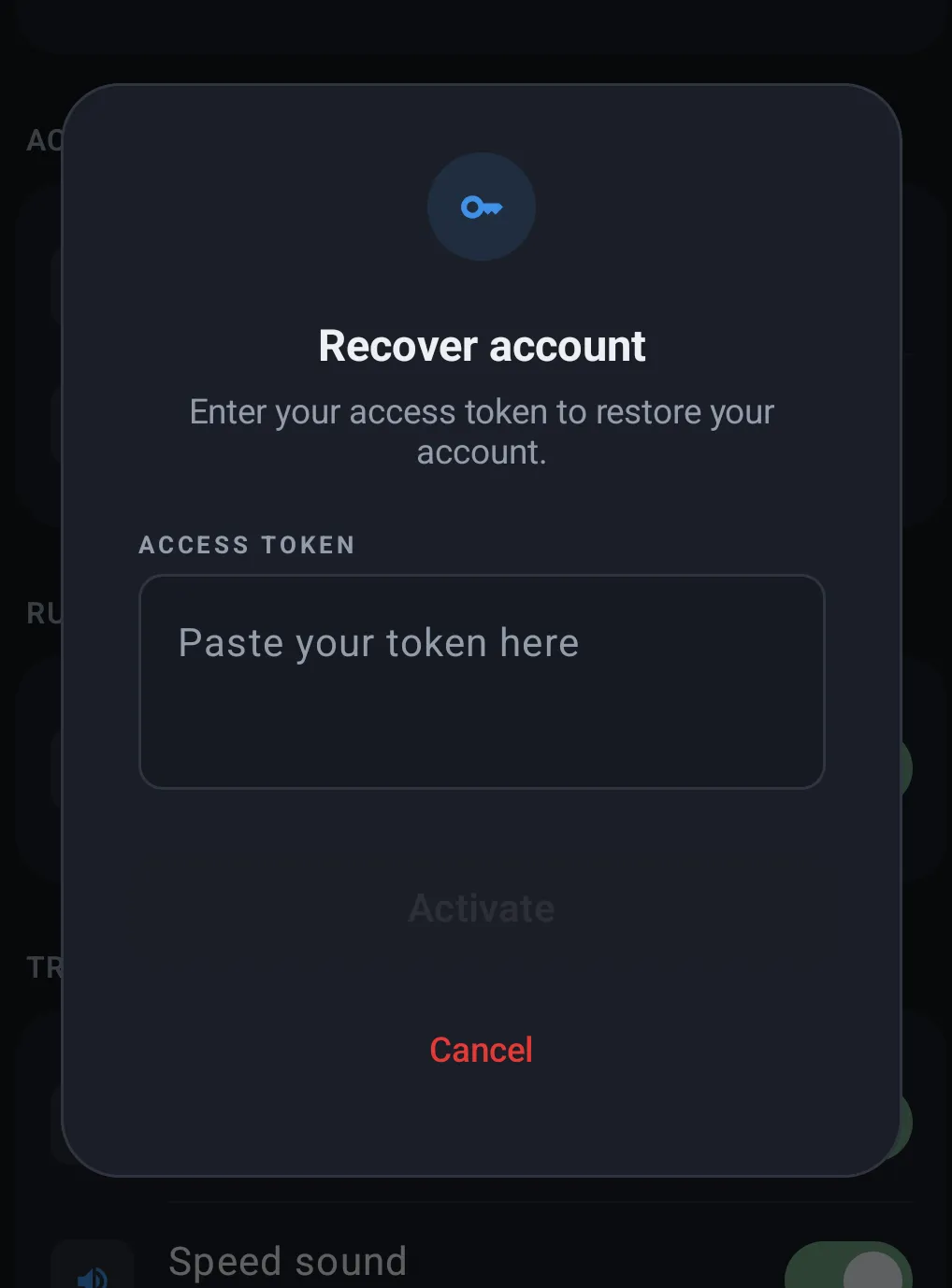
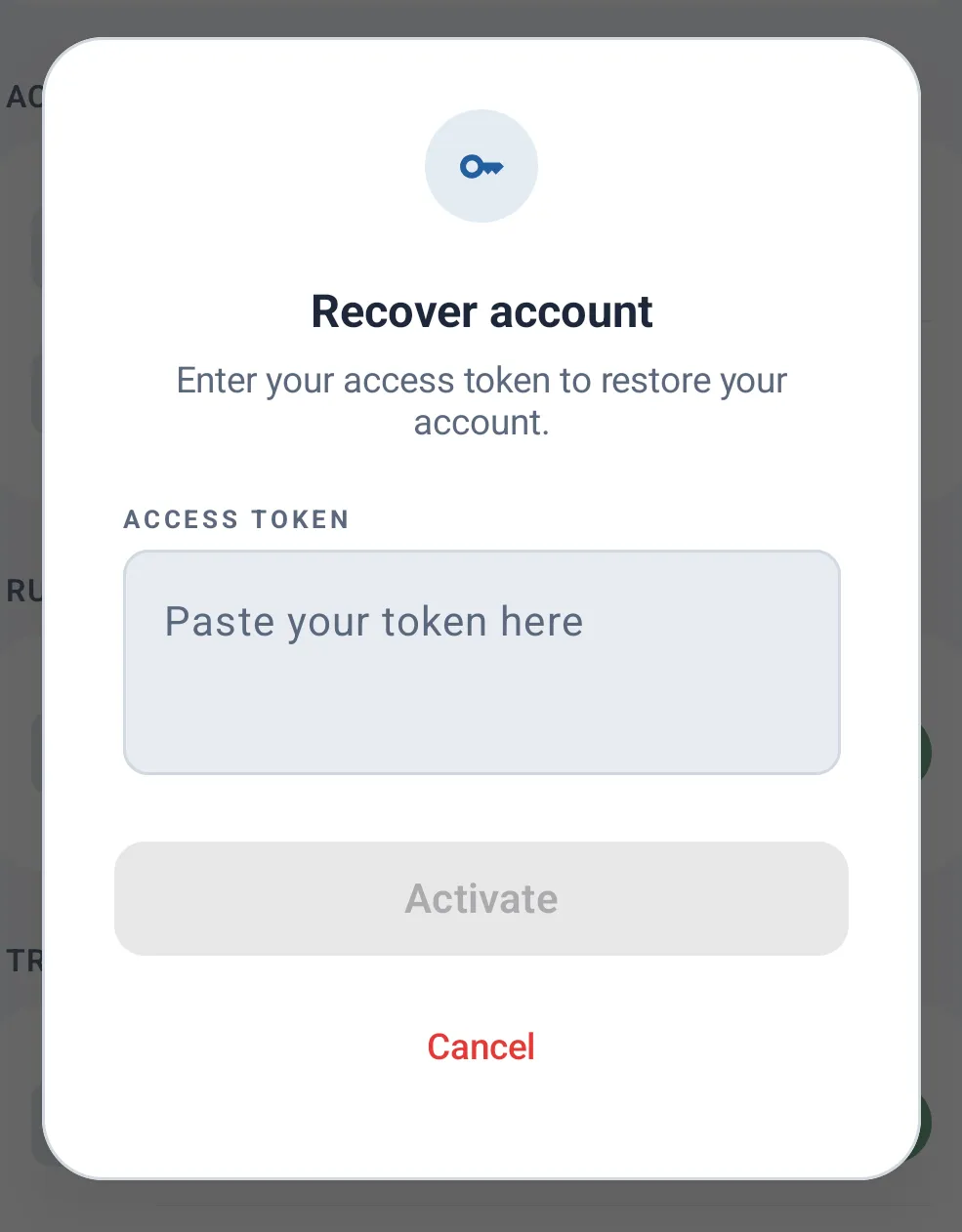
Tapping Recover account opens a window asking you to enter the access token provided by your coach. Once validated, the app automatically retrieves your associated training plans.
If loading the plans fails (e.g. a network issue), an error message is shown with the option to retry.