Top Bar
The top bar appears at the top of most screens in the app. Its content adapts automatically based on the screen and your profile.
Left icon
The icon shown on the left depends on the context:
- Back arrow — if you're on a secondary screen (e.g. a run's detail sheet), an arrow lets you go back to the previous screen
- Coach logo — if you follow a training plan with a coach, their organization's logo replaces the app's default logo, a visual reminder that your account is linked to a coach
- NoTrackRun logo — on main screens, if you're not coached, the app's default logo is shown


Screen title
The current screen's title is shown in the center of the bar (e.g. "My Runs", "Details", "Challenges"). Some screens, like the home screen, don't show a title.
Actions menu (right icon)
When a screen offers one or more actions, they aren't shown directly in the bar: they're grouped behind the ⋯ icon on the right. Tap it to open the menu and pick the desired action.
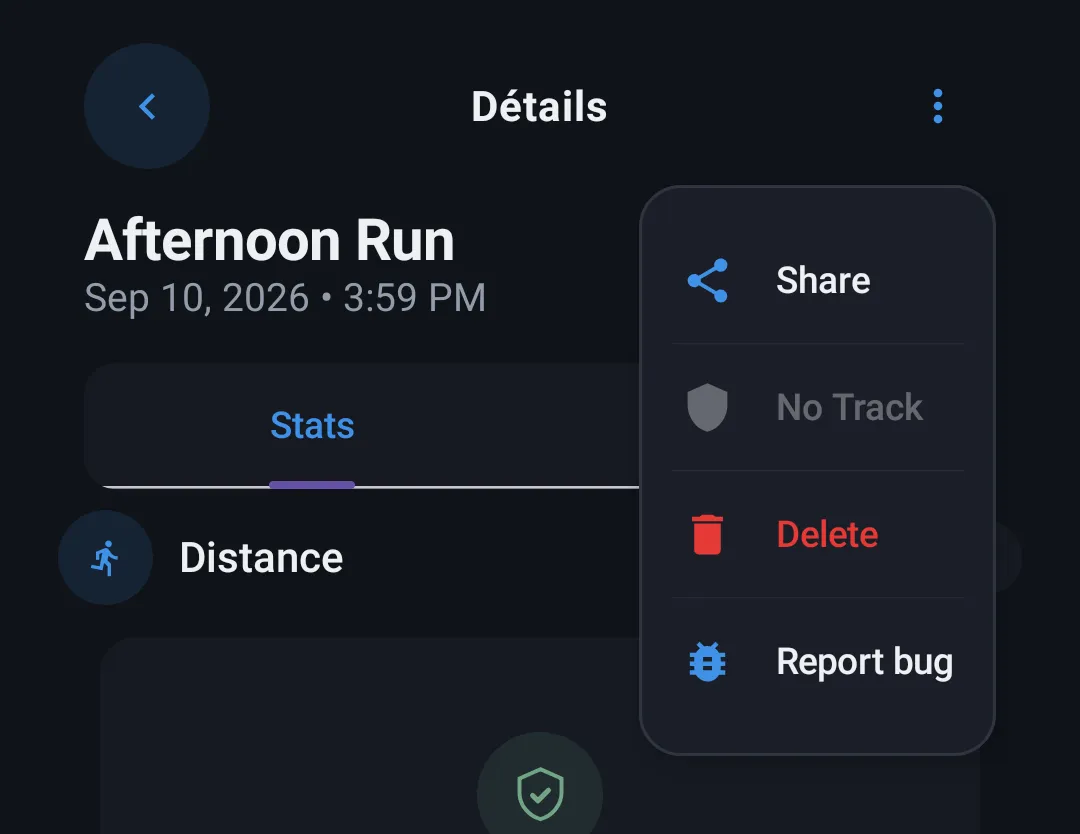
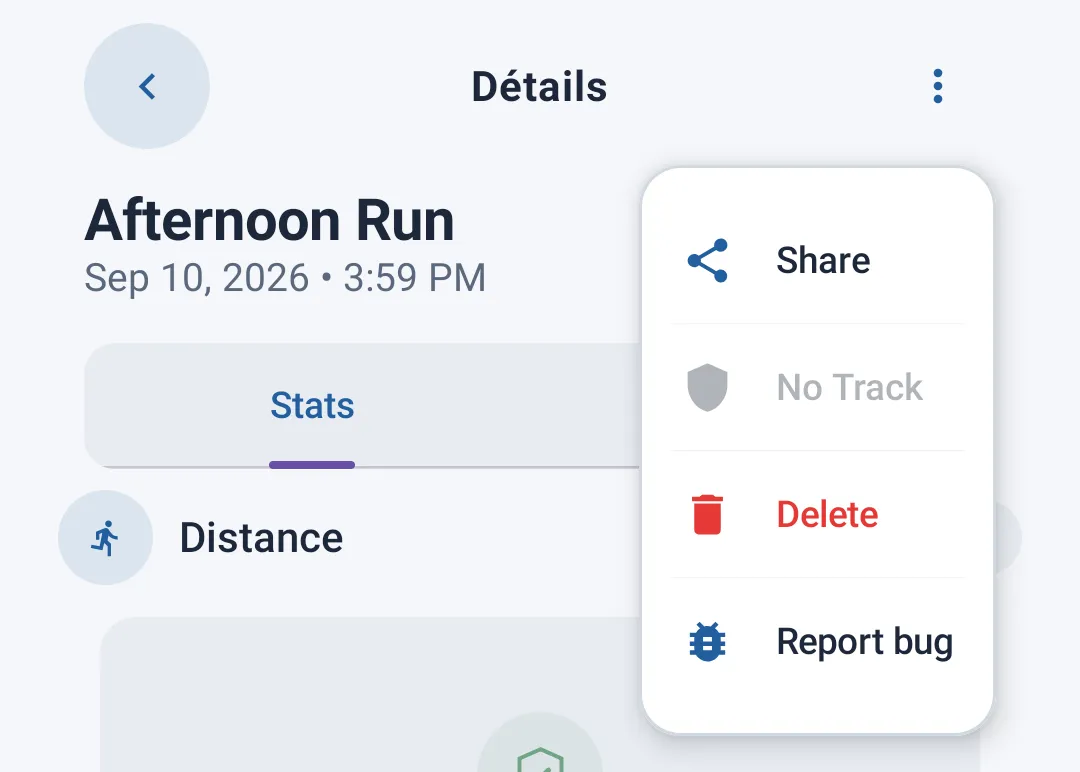
If the screen offers no action, the icon simply doesn't appear, leaving that space empty.
Some menu actions can be temporarily grayed out (unavailable) depending on context — for example, the No Track option is only available if the run still has a GPS route to delete.
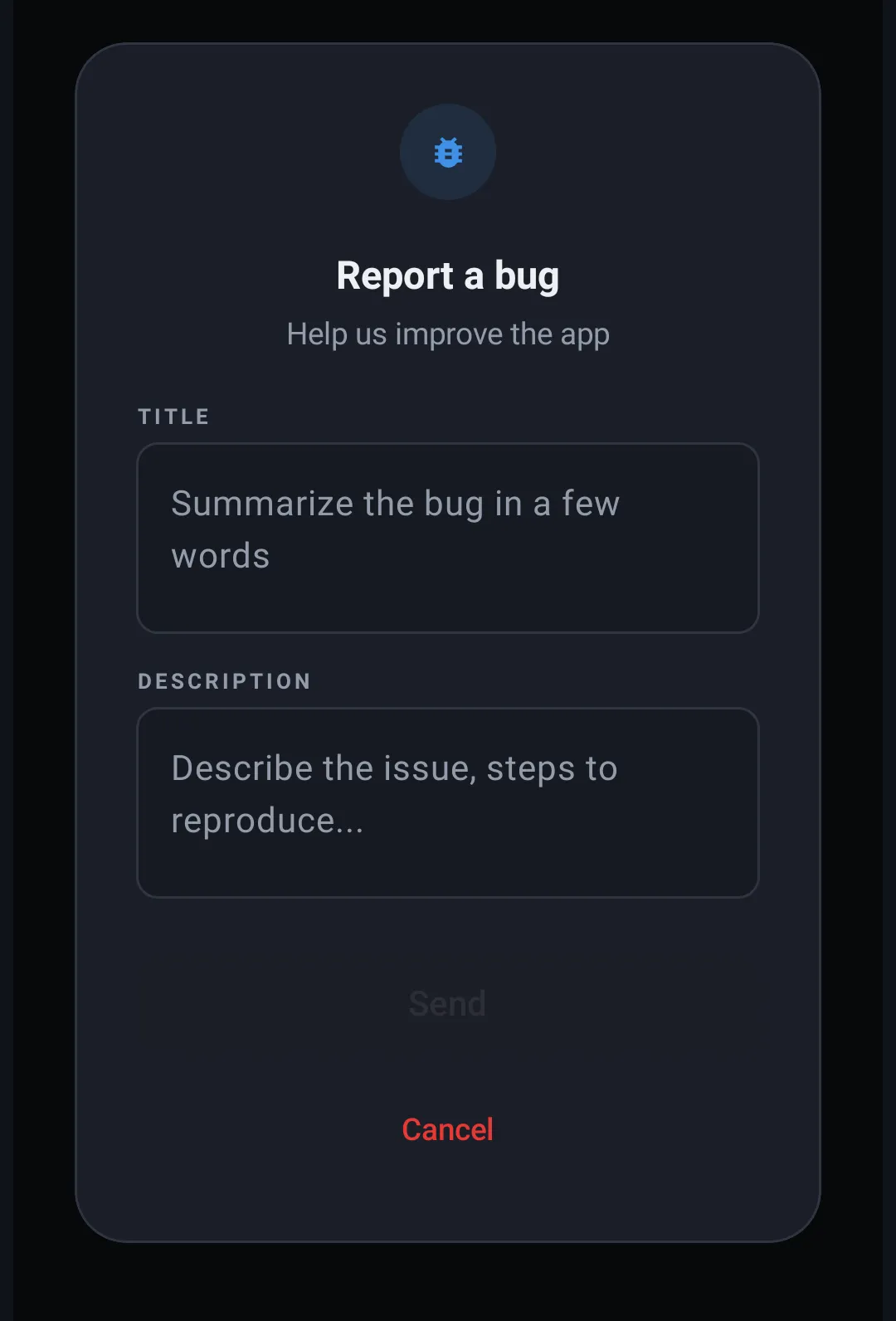
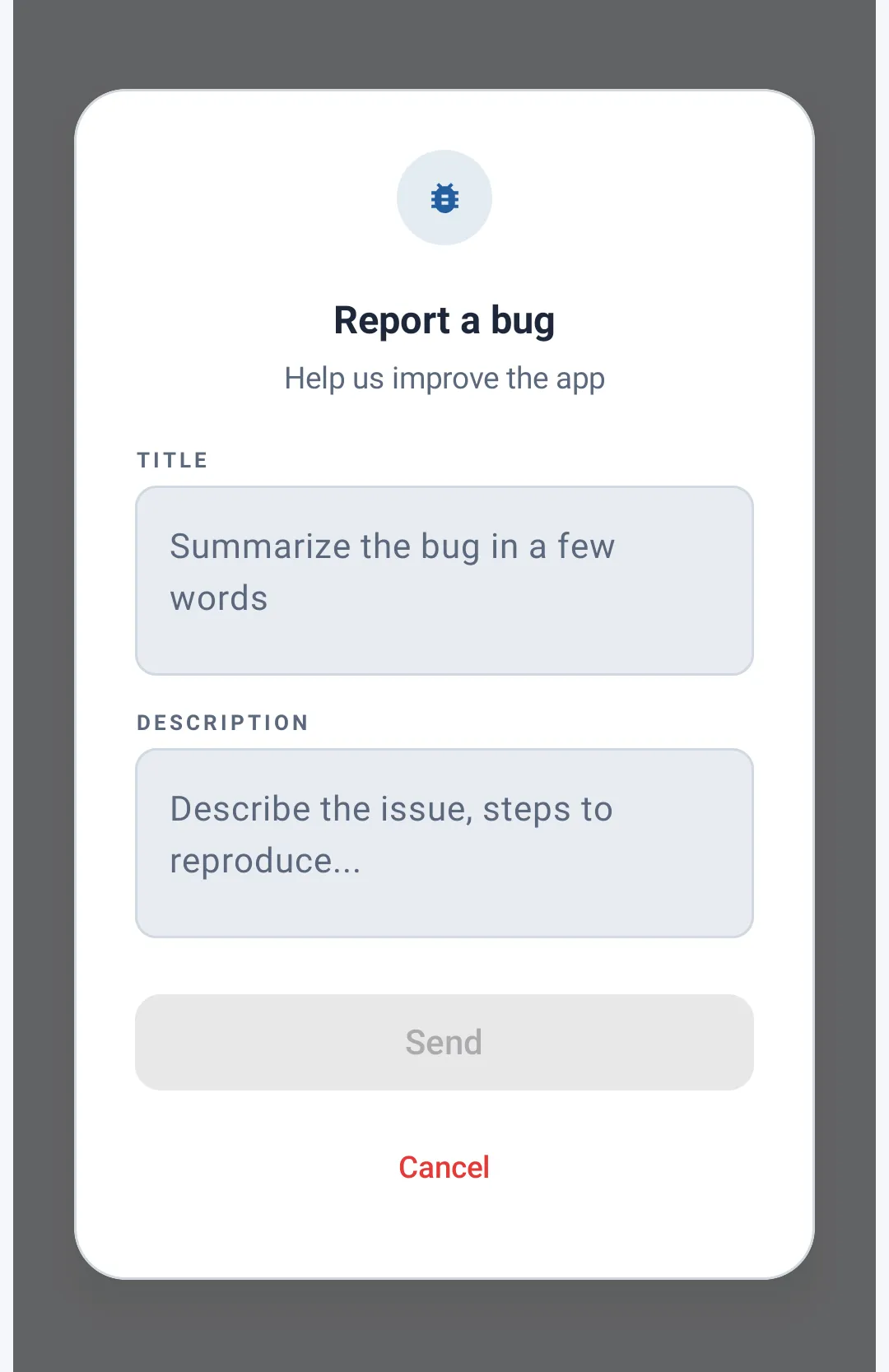
Reporting an issue
If your account is linked (e.g. to a coach), an additional Report bug option automatically appears at the bottom of the actions menu, on every screen. It lets you report an issue directly from the app.