Training Session Detail
This screen presents a session's full content before starting it, then shows your results once it's finished.
Session overview
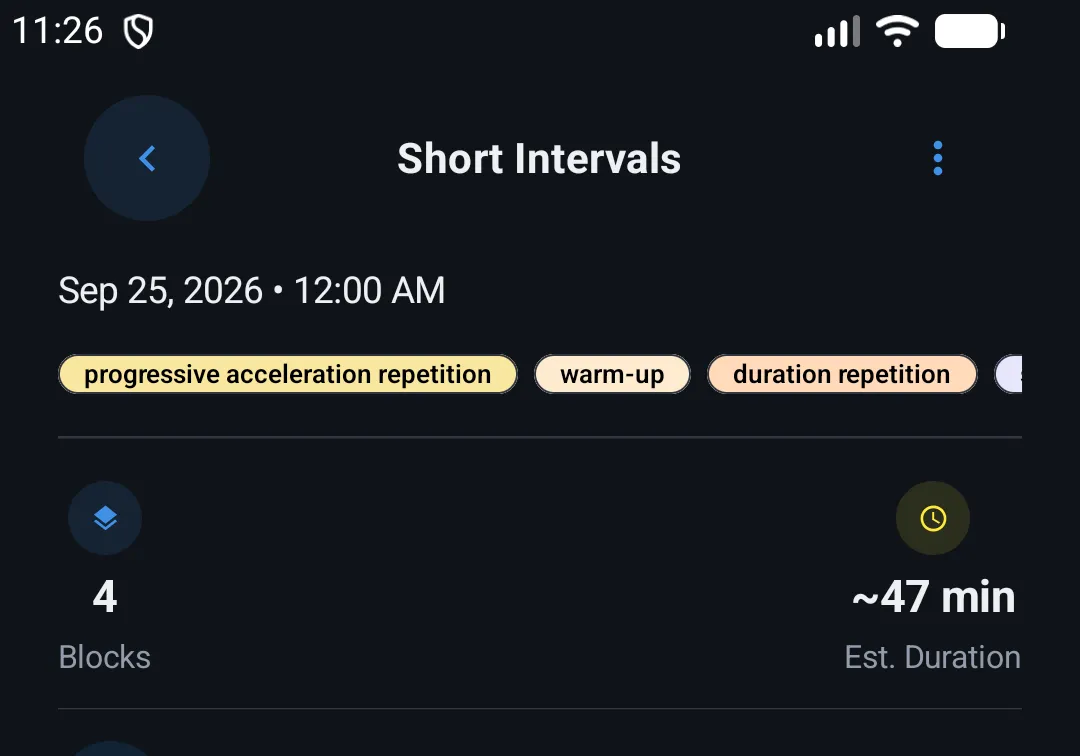
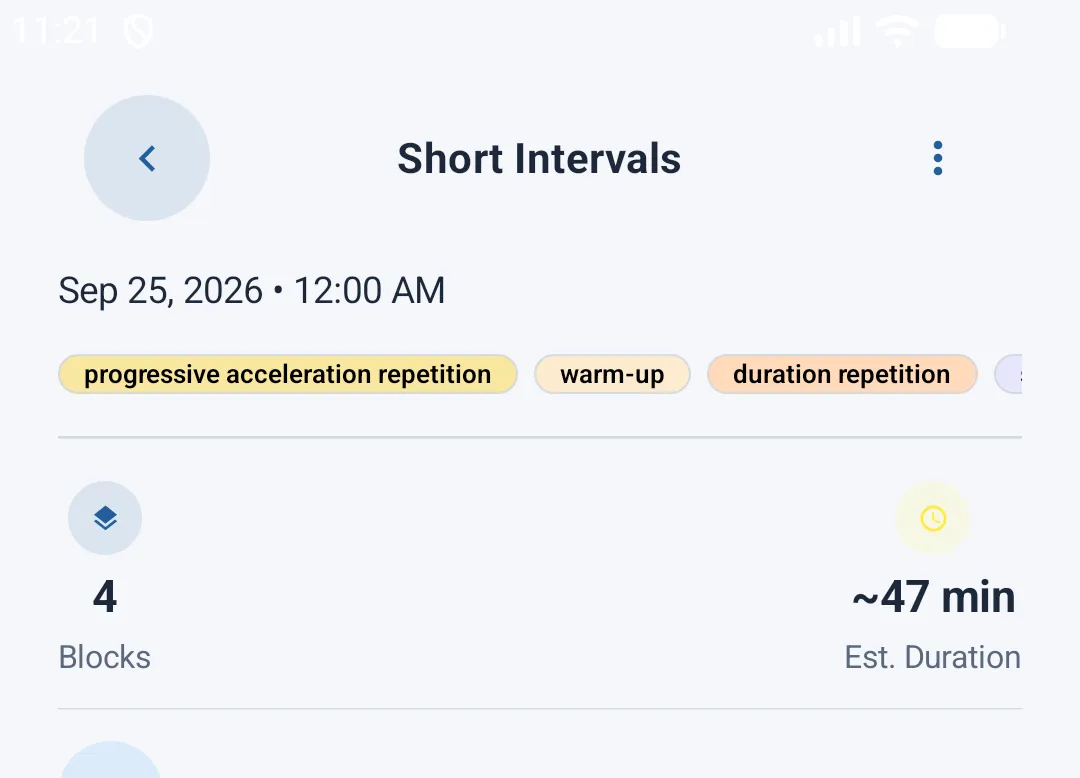
At the top of the screen, a card summarizes general information:
- The session's date
- A quick preview of the blocks it's made of, as colored labels
- The total number of blocks
- The session's estimated duration
Exercise block detail
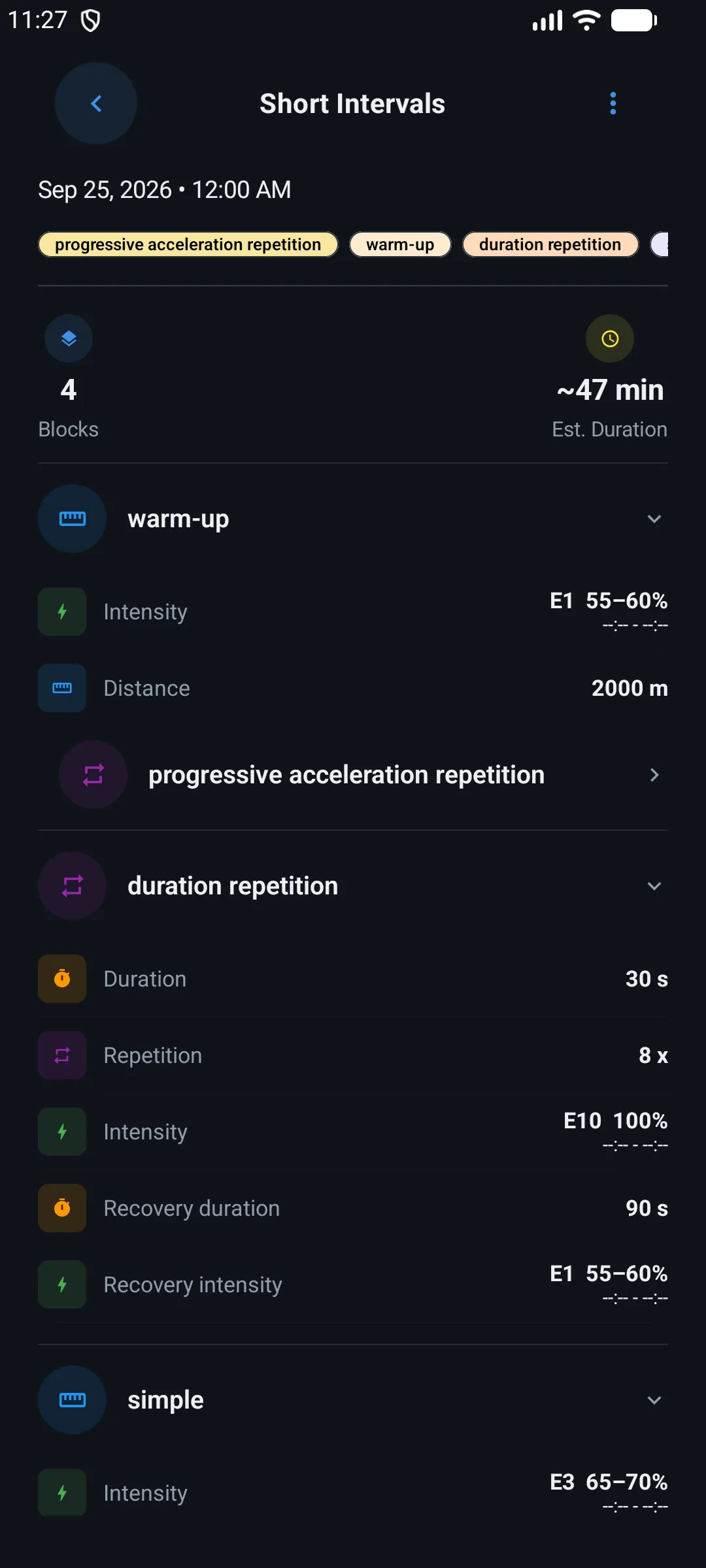
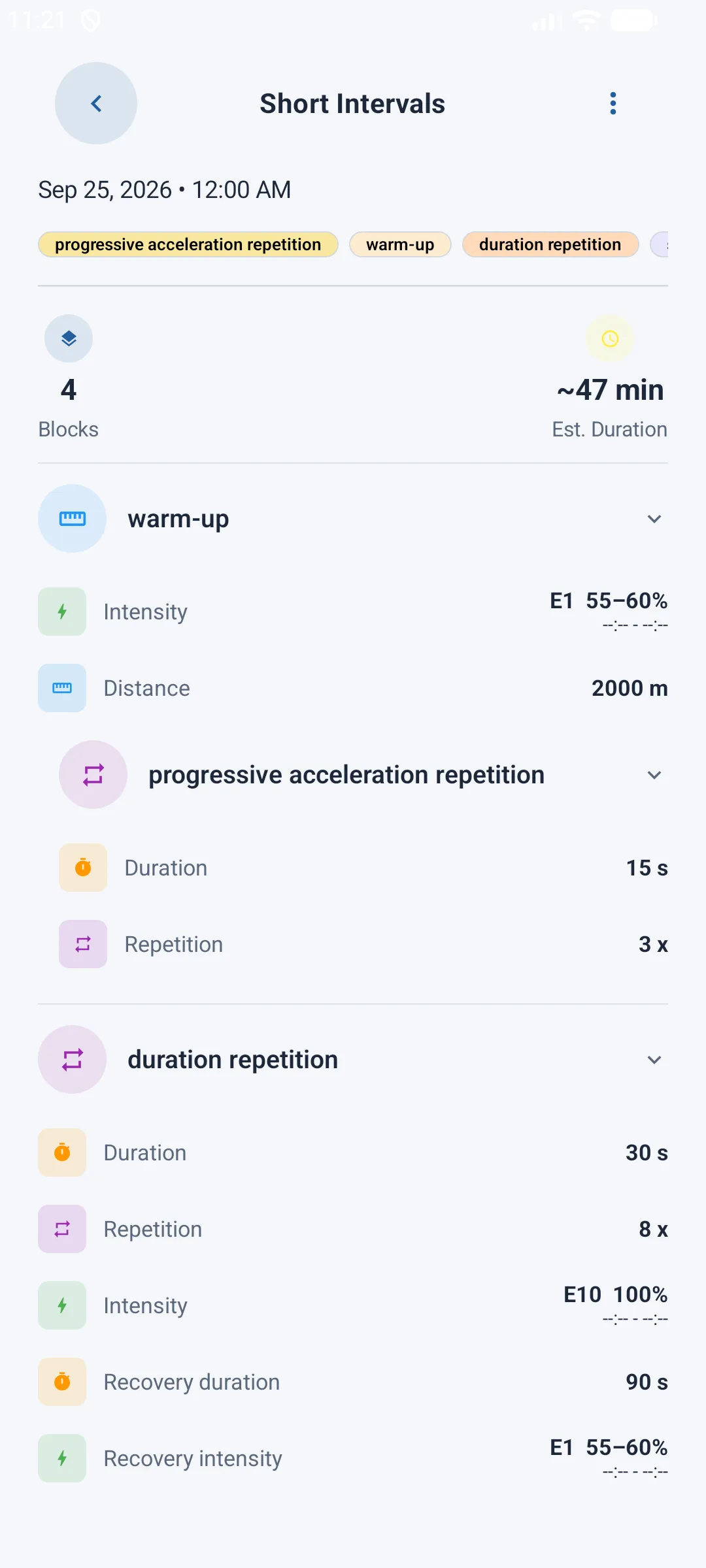
Below, each block of the session is shown as an expandable card. Tapping a block's header opens its full detail:
- Configuration fields — depending on the block type, this can be a duration, a distance, a number of repetitions, or an effort intensity (with the target pace automatically calculated from your VMA)
- Additional options (heart rate zone, load, etc.), shown as small tags
- Sub-blocks, if the block contains any (e.g. a set of repetitions made of several phases)
Starting the session
A Play button at the bottom of the screen lets you start the session. It's only visible when certain conditions are met:
| Unmet condition | Message shown |
|---|---|
| The session has no exercises yet | "This session has no exercises yet." |
| No VMA test has been completed yet | "Complete a VMA Test first to unlock this session." |
| The session is scheduled for a different week than the current one | "This session is scheduled for another week." |
Once the session is completed, the button naturally disappears since it can only be done once.
Special case — the VMA test
If the selected session is your VMA test (maximal aerobic speed), a short explanatory tutorial is shown before starting, detailing each step of the protocol (warm-up, intense effort, walking, jogging, recovery...).
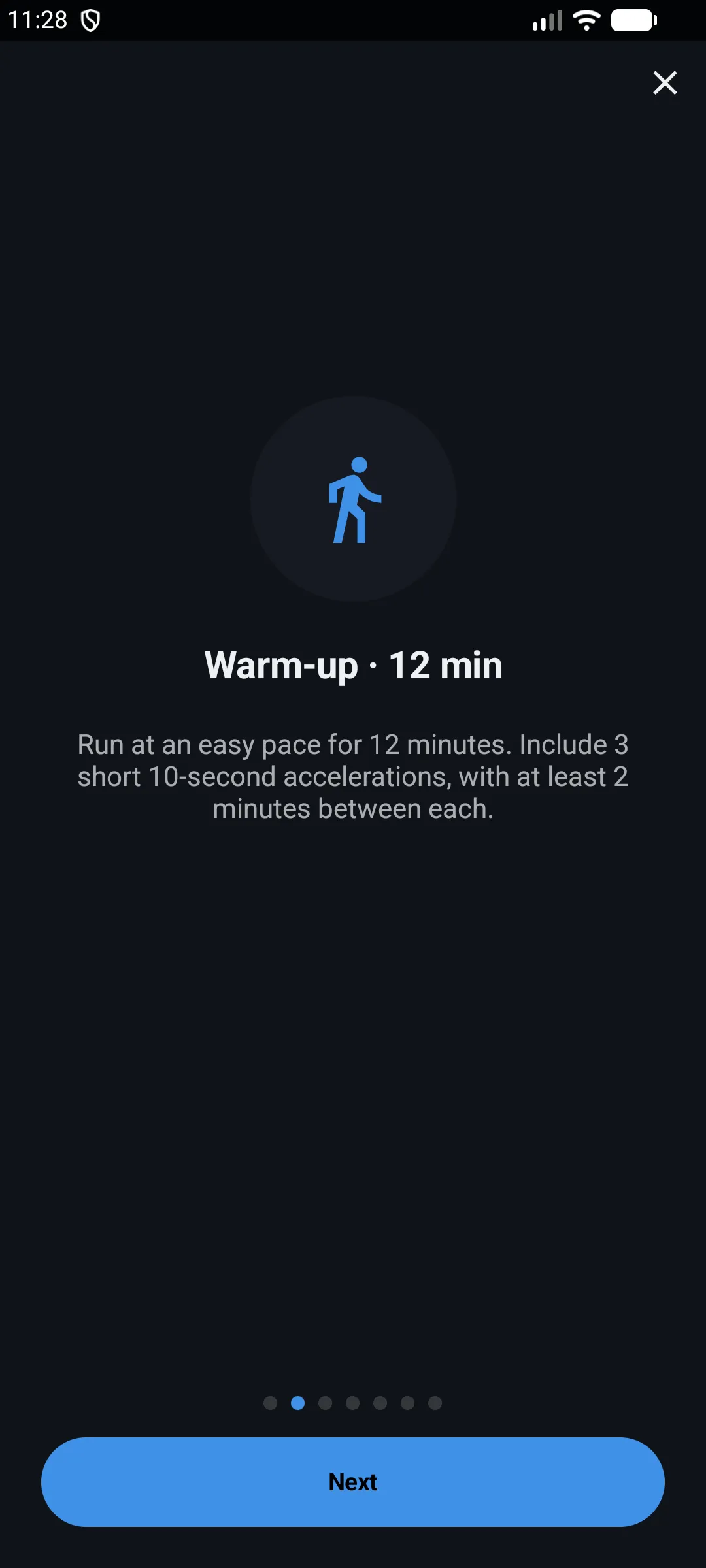
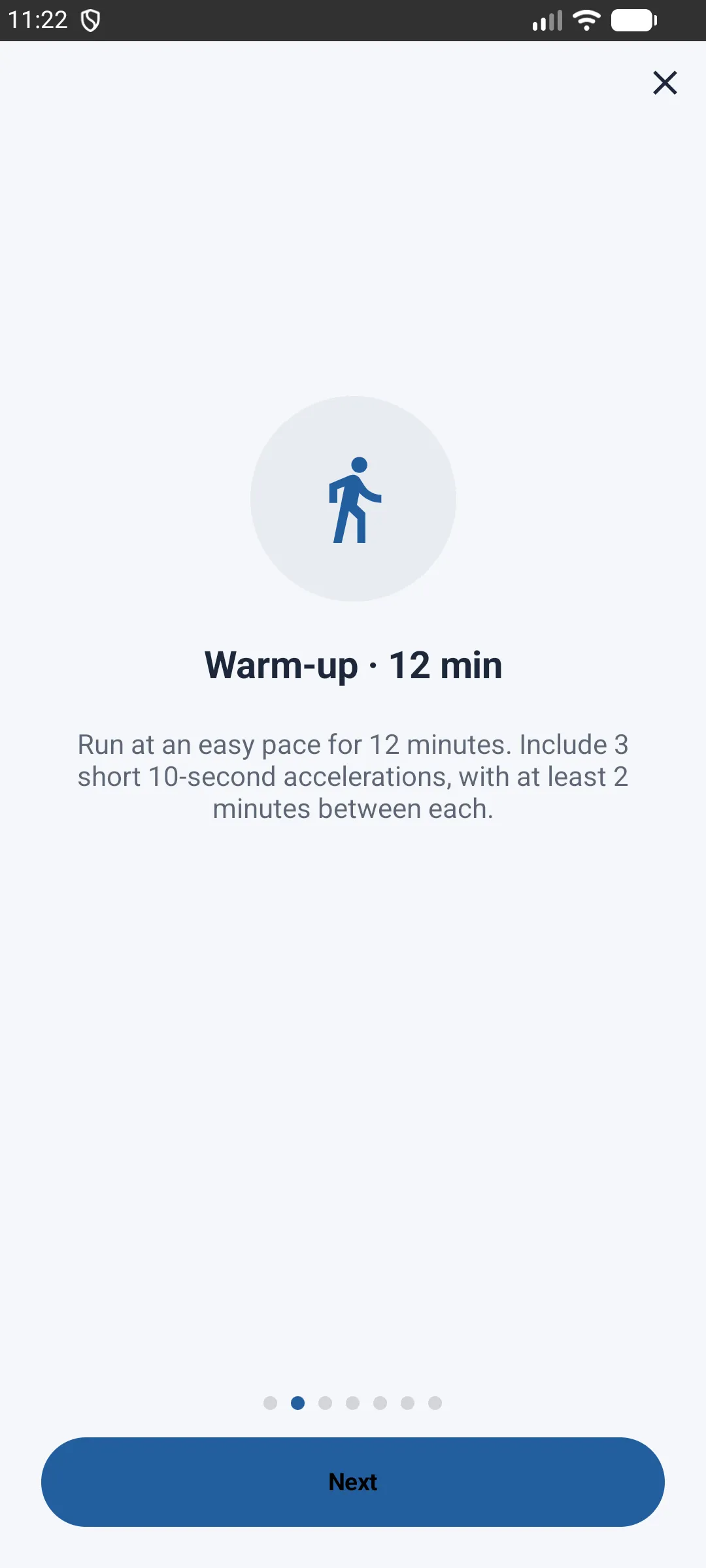
This test matters: completing it is mandatory to unlock all your other training sessions, since it determines the target paces used throughout your whole plan.
Results after a completed session
Once the session is done, each block shows its results instead of its initial configuration, with a comparison between the target and the actual performance:
- A ✅ or ❌ indicator shows whether the block's goal was reached
- A table details, for each measure (time, distance, speed), the target and achieved values
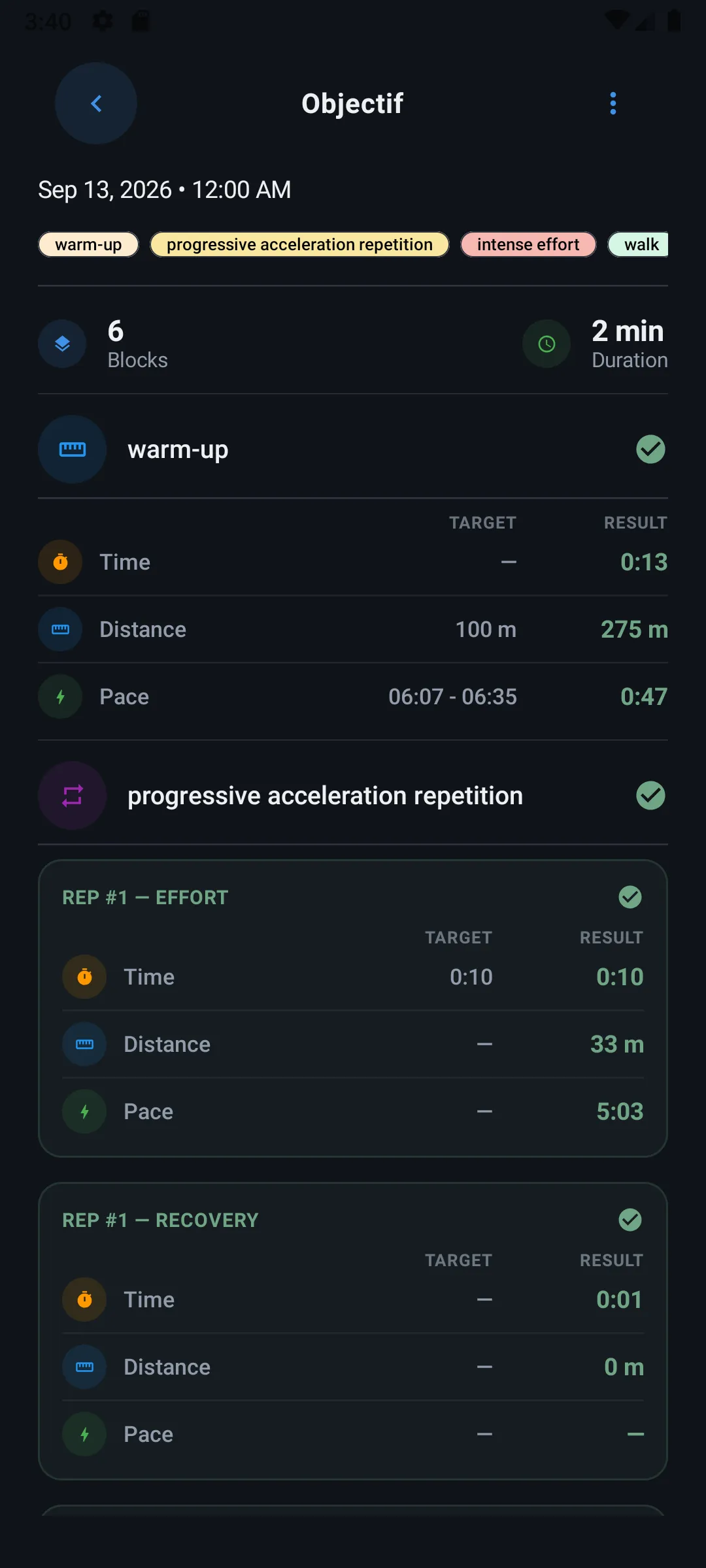
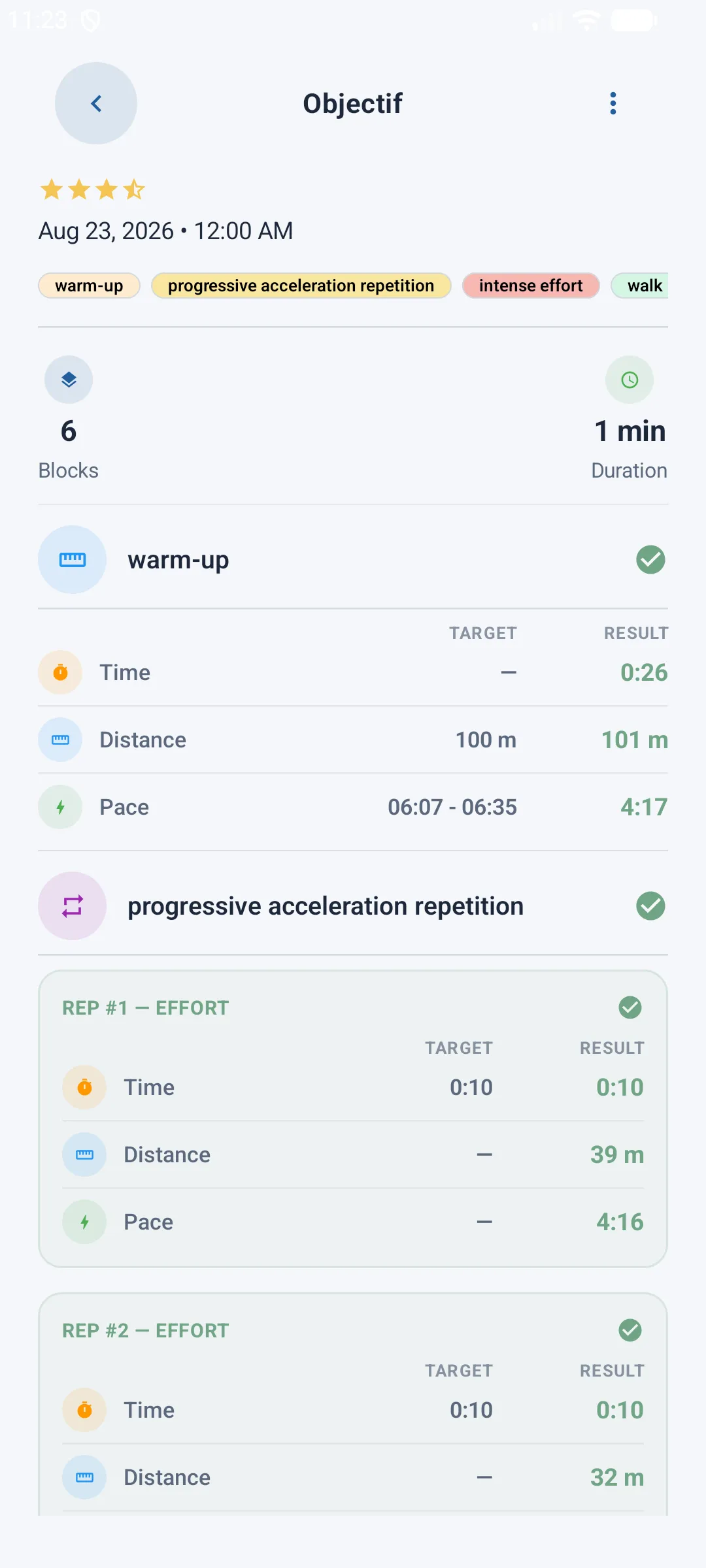
For blocks repeated several times, each repetition is shown individually in the results table. For conditioning blocks (exercises), the result is simply listed without a target/achieved comparison.
Feeling and comment
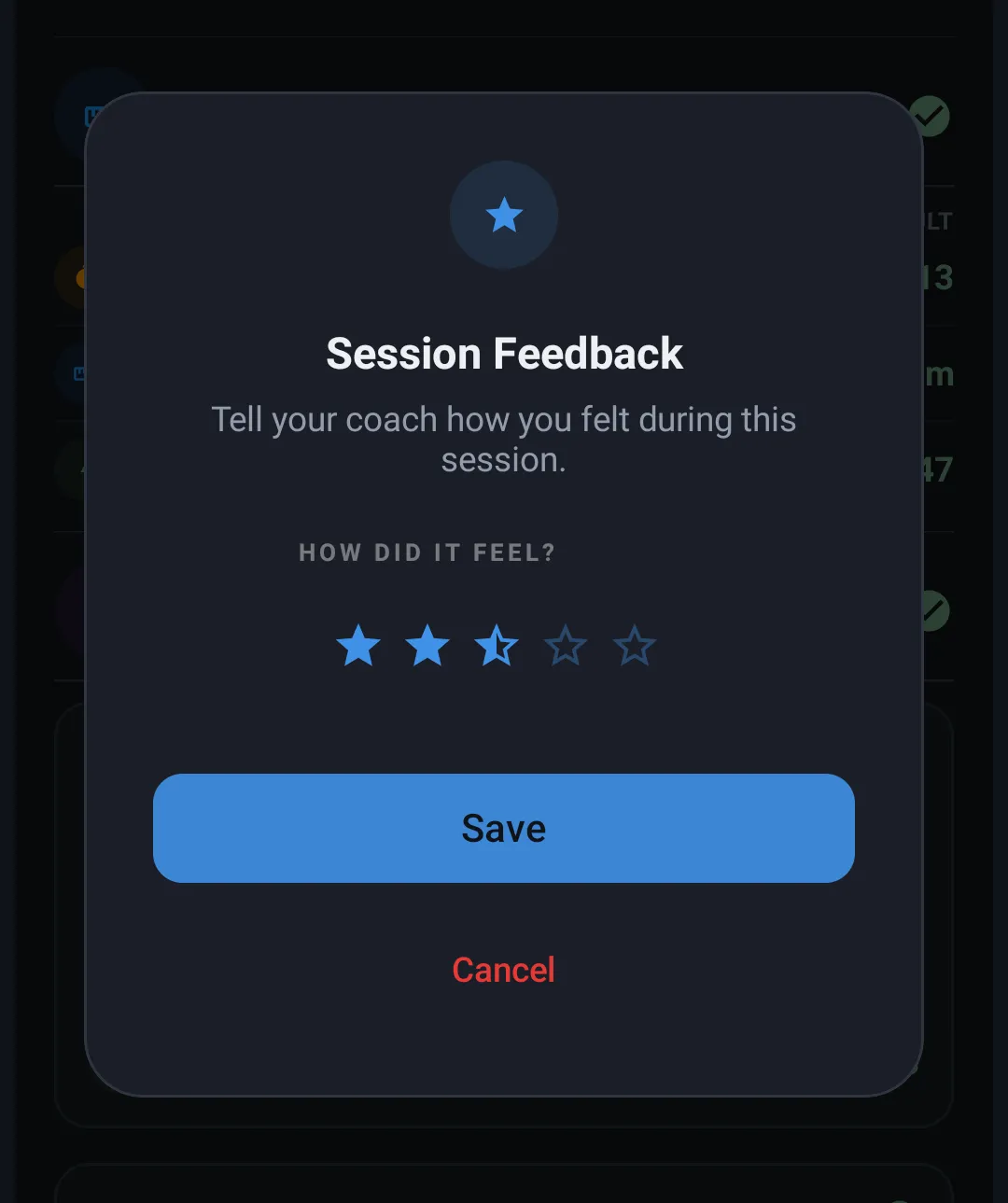
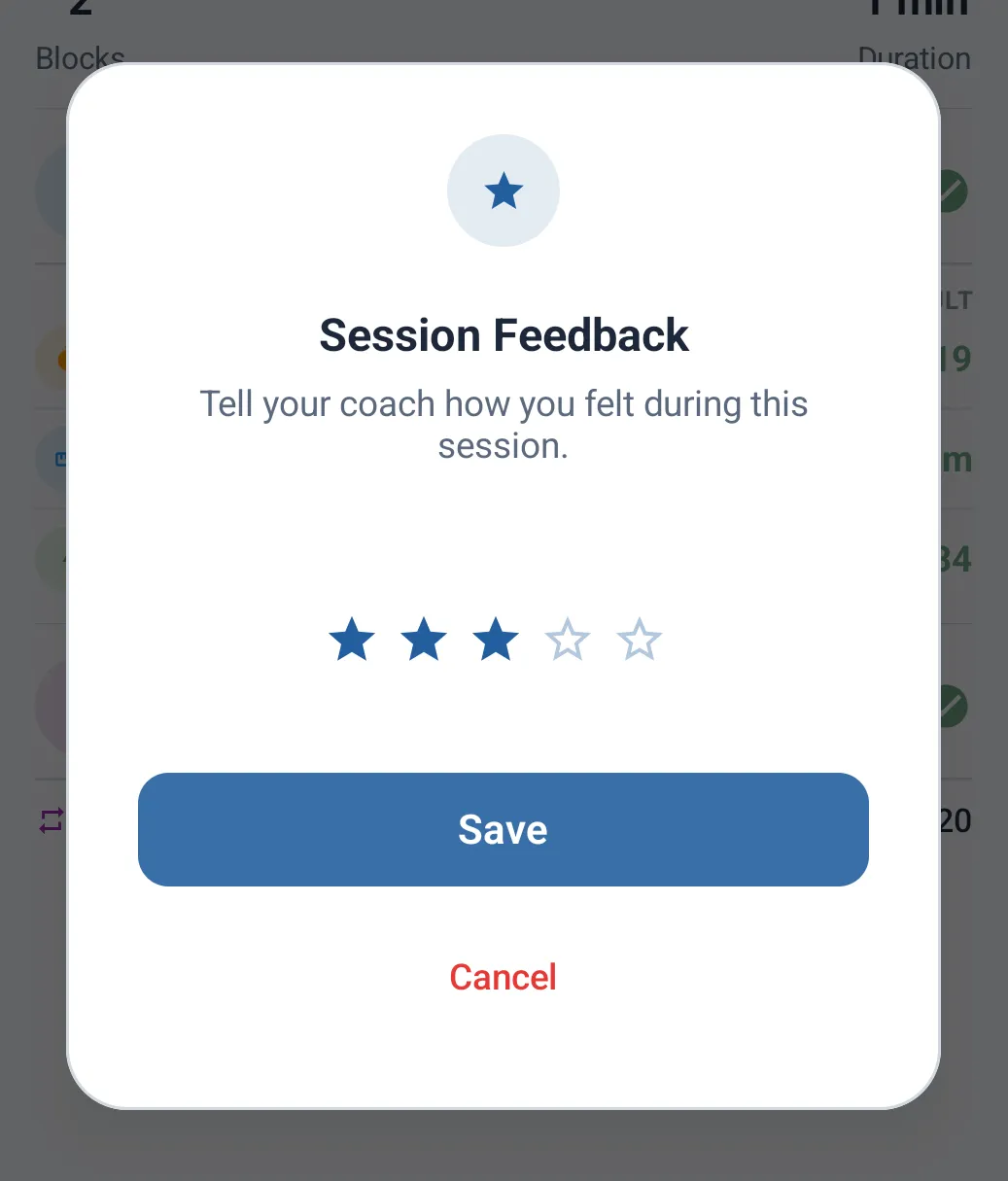
Right after finishing a session, the app invites you to rate how you felt (stars). This feedback is visible to your coach if you follow a With Coach plan.
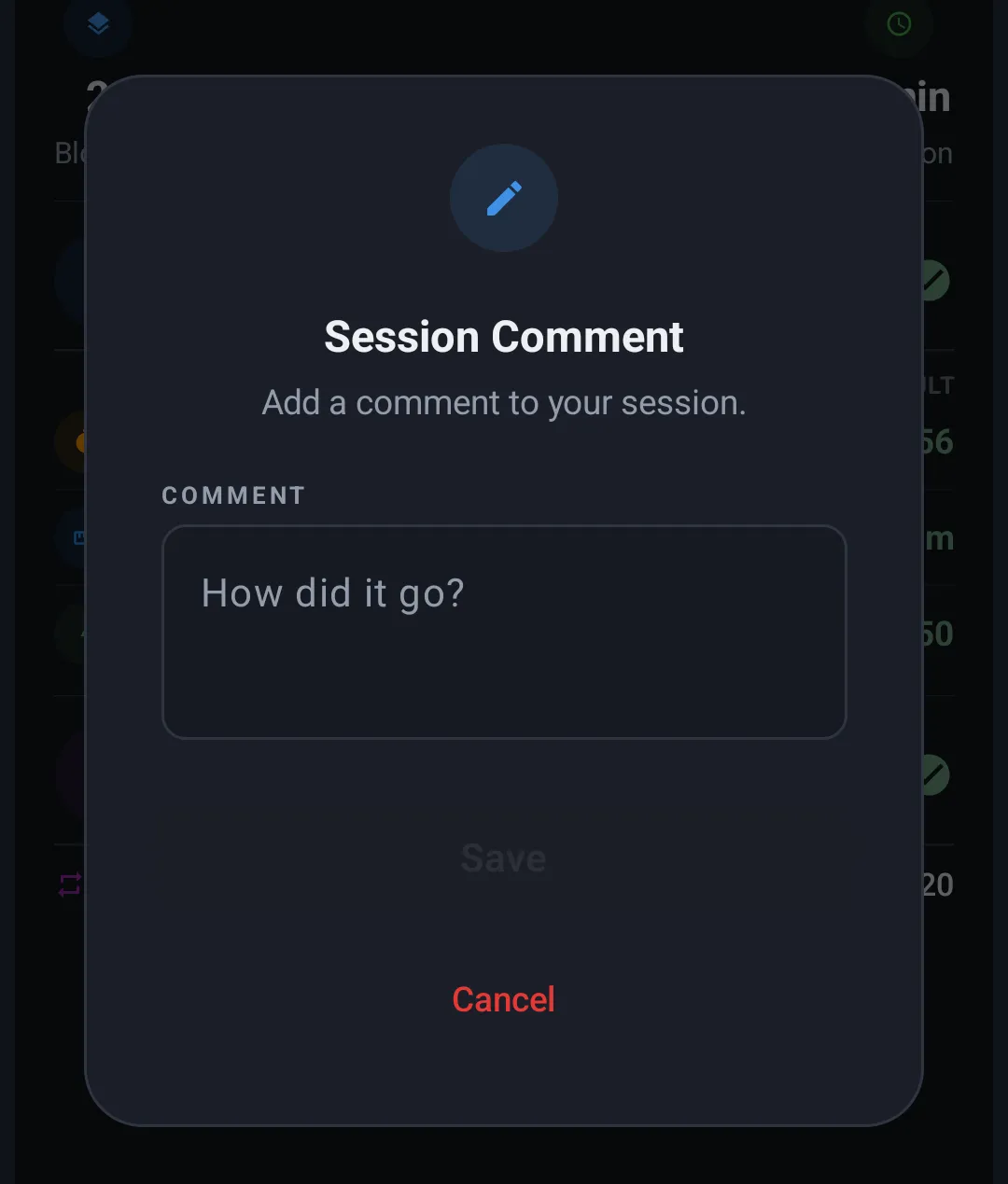
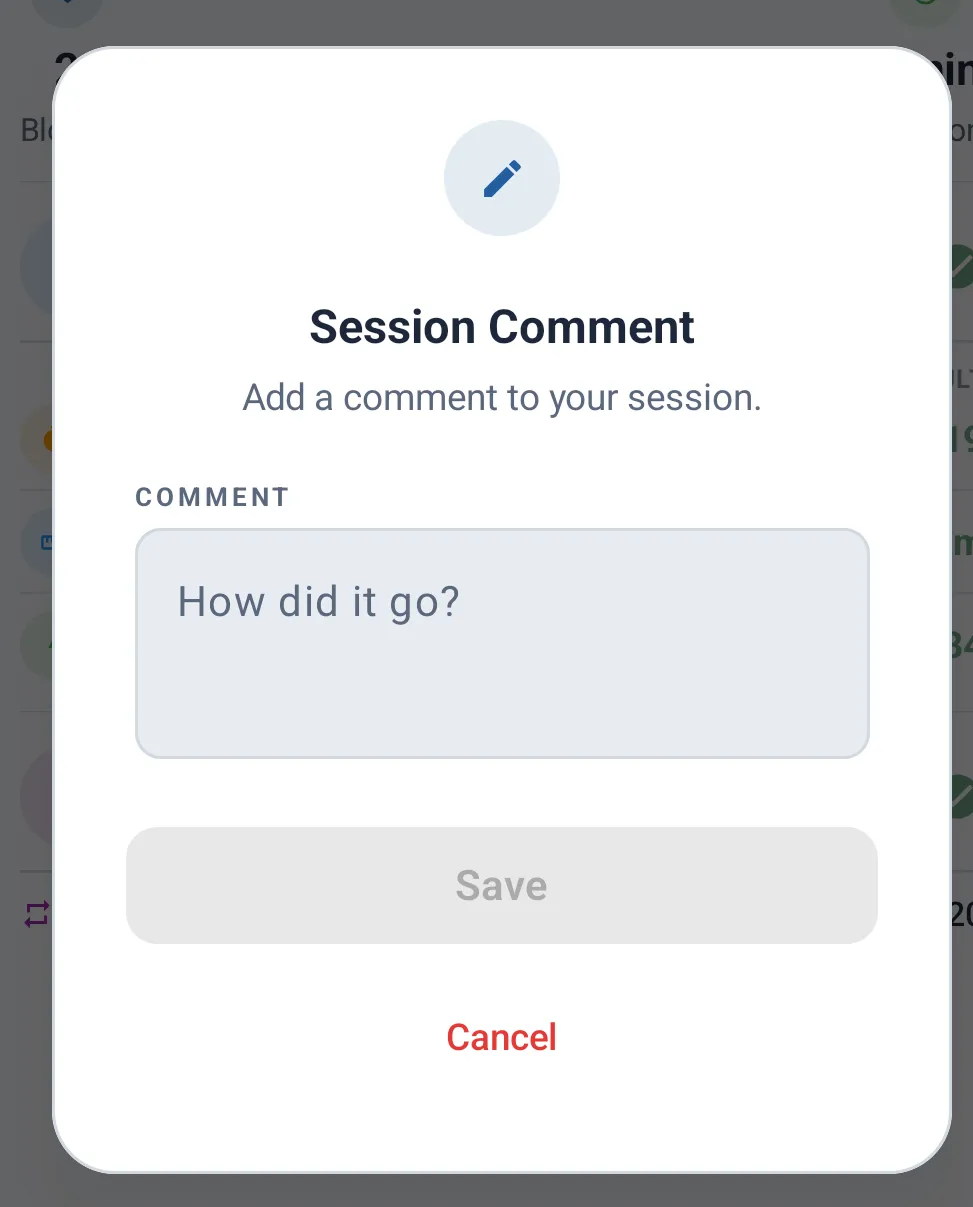
Once the session is finished, you can also add or edit a comment at any time via the top bar's menu (speech bubble icon).