Classic Run
When you tap the Play button in the navigation bar, the run screen opens in full screen and tracking of your run begins.
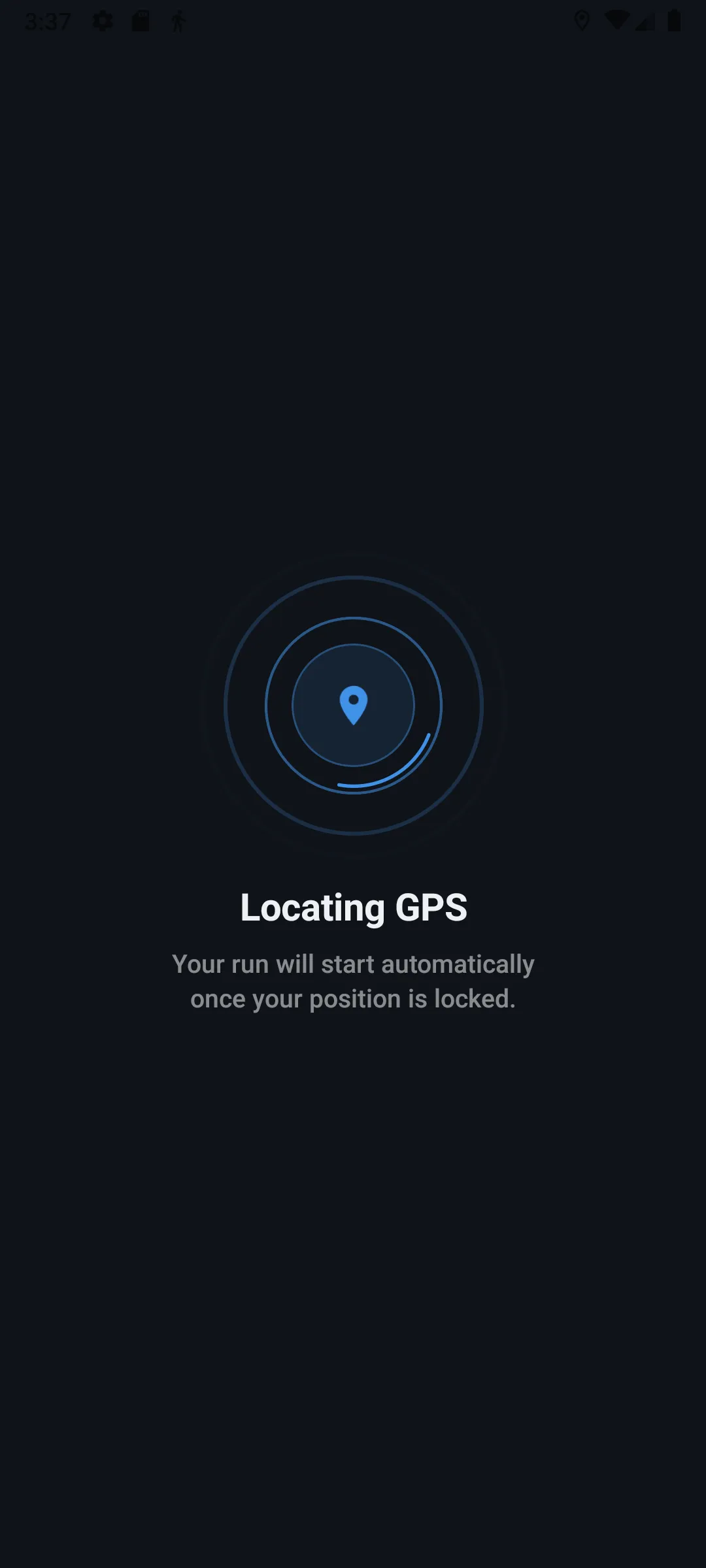
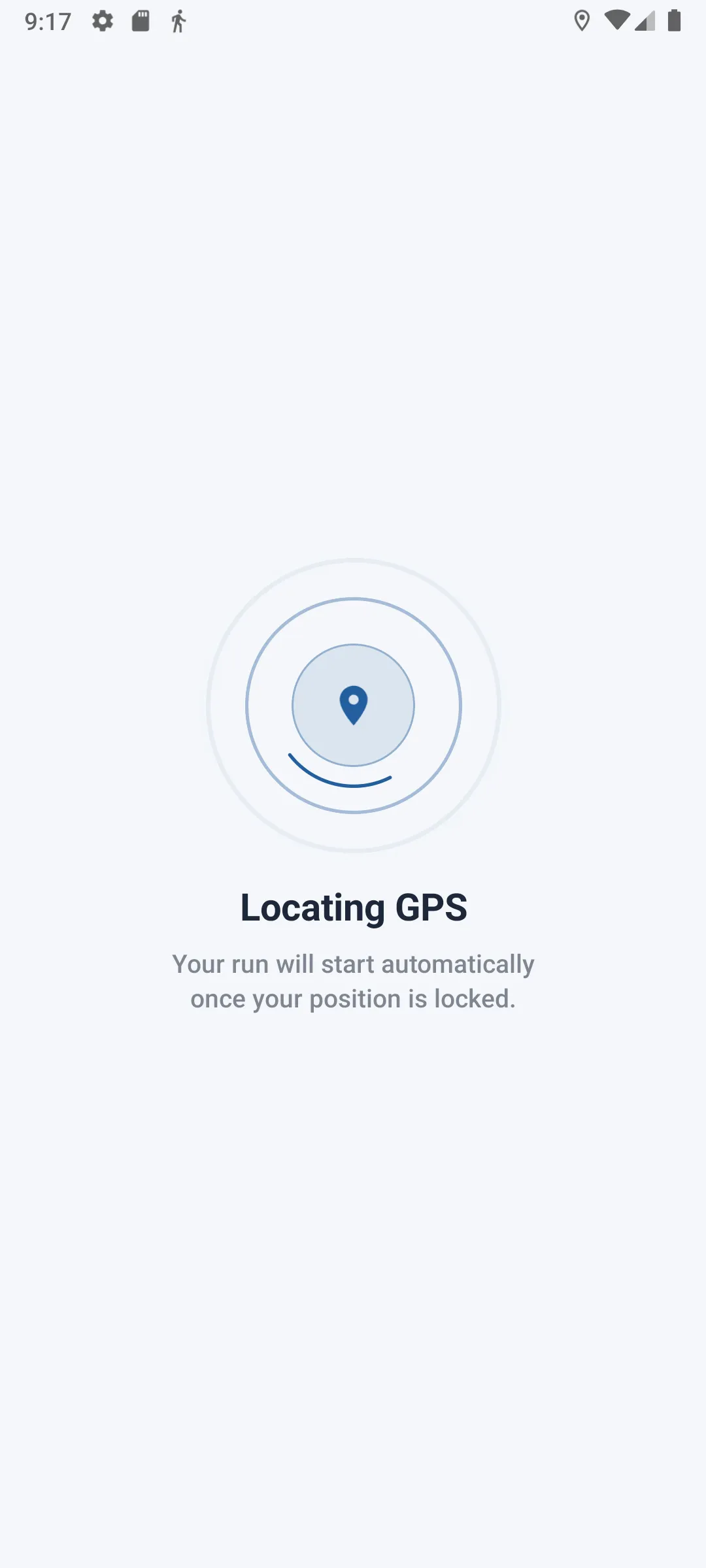
Waiting for GPS signal
On launch, the app looks for a sufficiently accurate GPS signal before starting the timer. A waiting screen is shown during this phase.
If no satisfactory signal is found after 30 seconds, the run starts automatically so you're not blocked indefinitely — the data will simply be less accurate at the very start.
Starting countdown
As soon as a sufficiently accurate GPS signal is found, a short "Ready, Go!" screen briefly appears before switching to the live tracking screen.
Live tracking screen
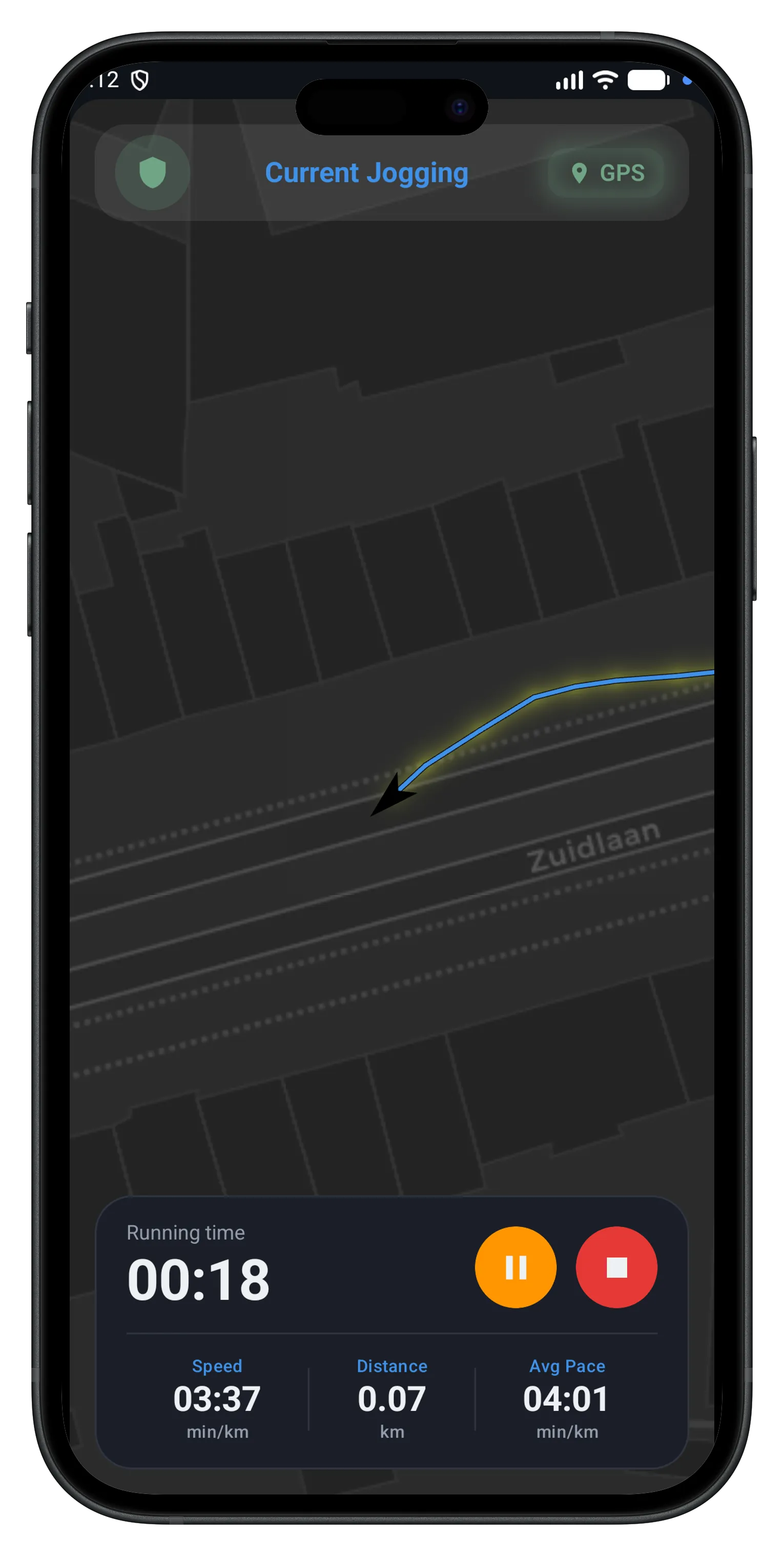
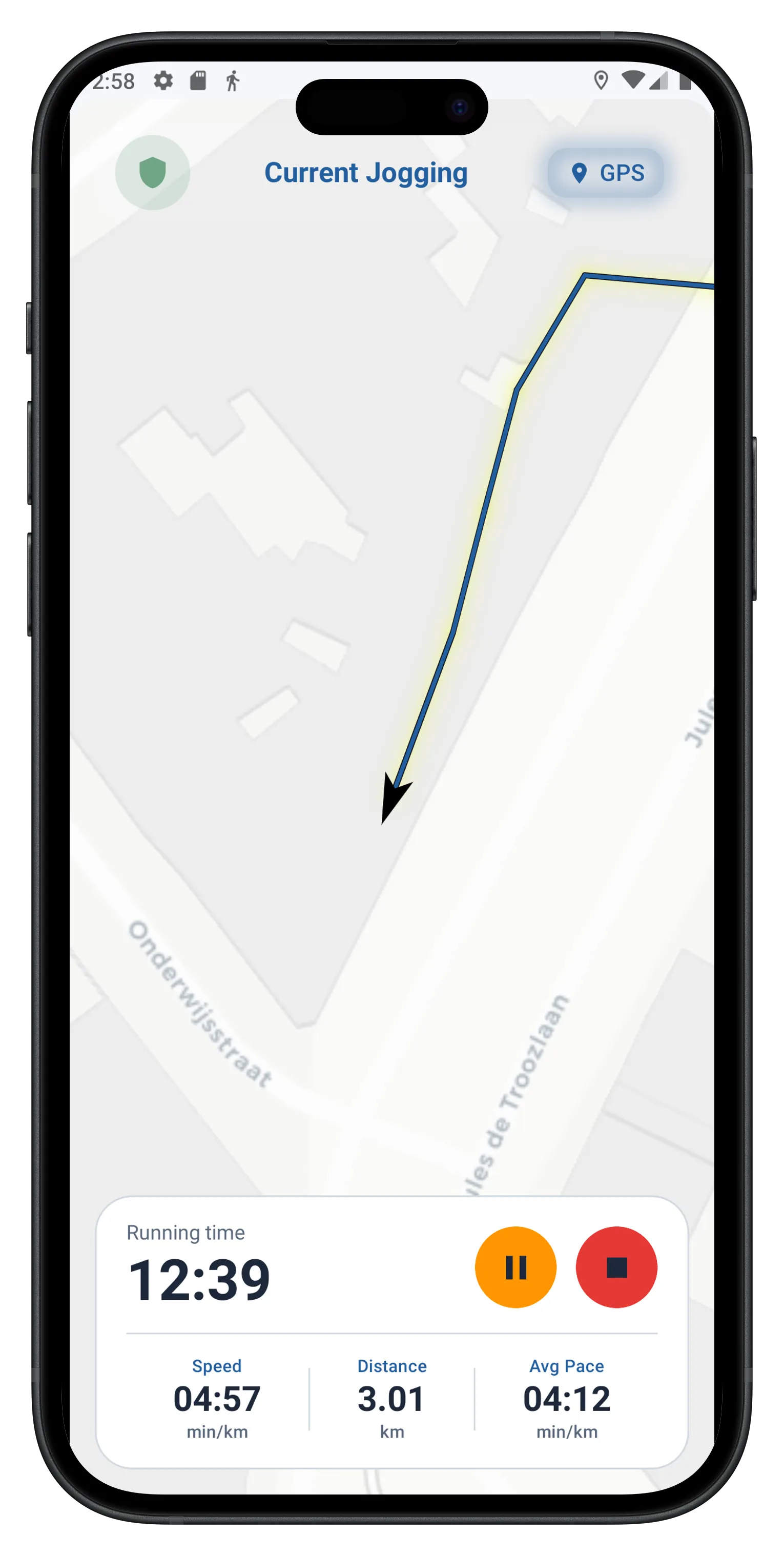
Once the run has started, you land on the main tracking screen, made up of three areas.
The map
Your route is drawn on the map in real time as you progress.
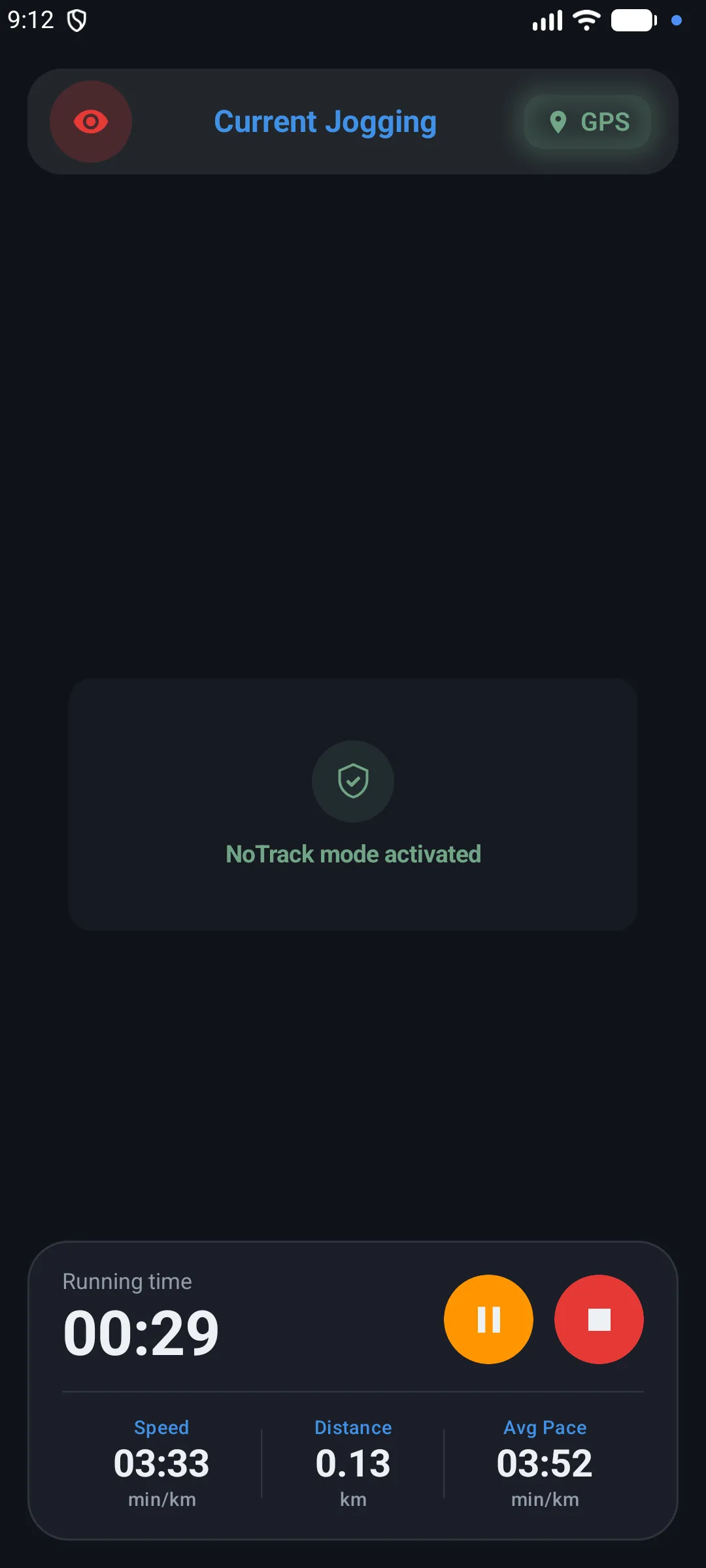
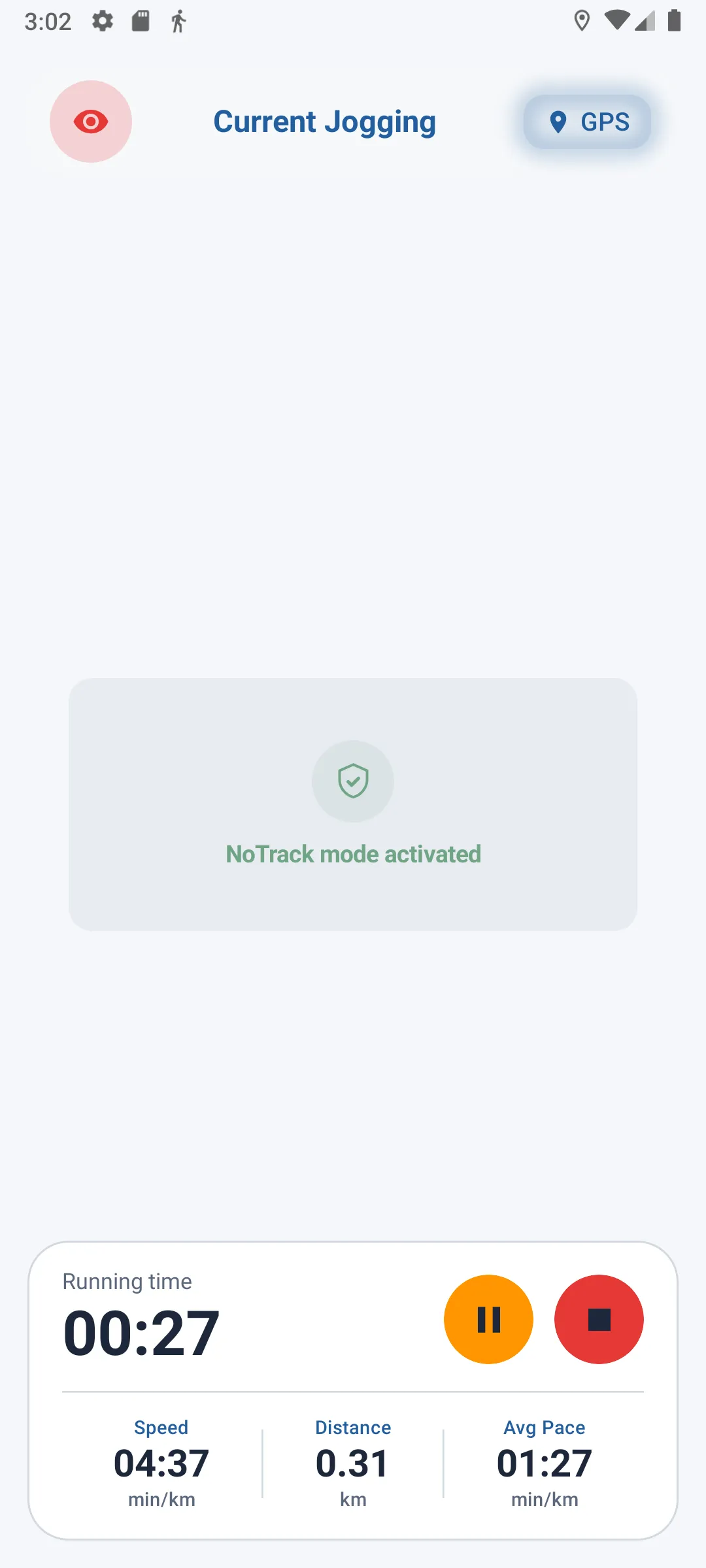
If No Track mode is enabled, the map is replaced by a dedicated visual indicating that no GPS position is being recorded (see section 5 below).
The stats panel
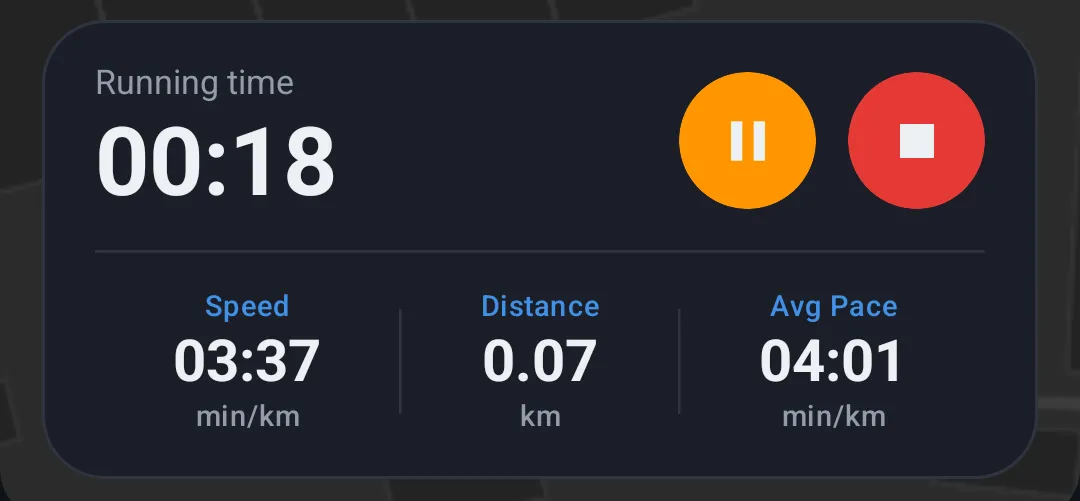
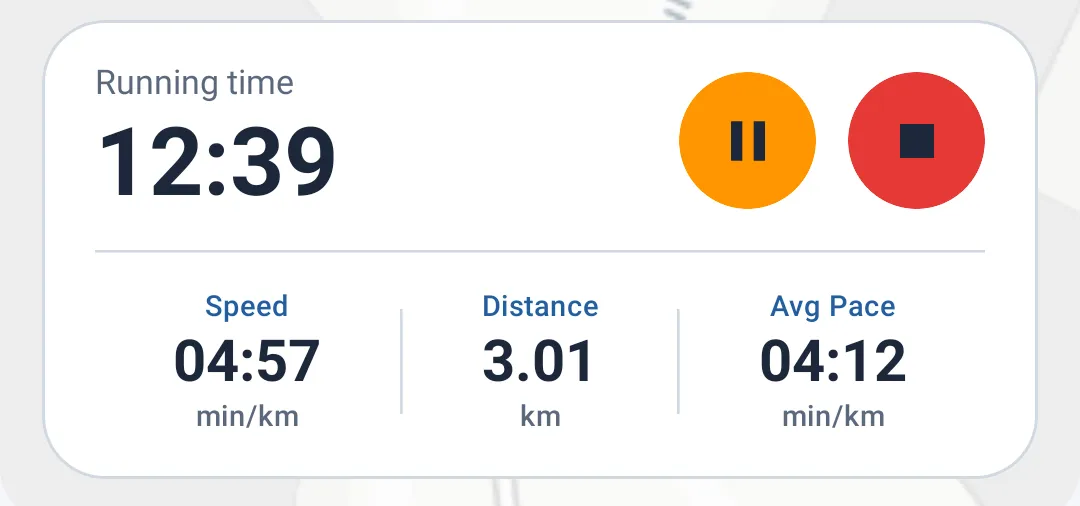
At the bottom of the screen, a panel shows in real time:
- Elapsed run time
- Instant speed
- Distance covered
- Average pace
Action buttons
Two buttons let you control the run:
- Pause / Resume — pauses the run or resumes it. Time and distance stop progressing while the run is paused.
- Stop — permanently ends the run and saves it to your history.
Automatic saving
Your run is saved regularly in the background while you're running. If the app closes unexpectedly or a technical issue occurs, your run data isn't lost.
If the distance covered is too small when you stop the run (e.g. an accidental start immediately followed by a stop), the run is not kept in your history.
No Track mode
From the run screen, you can enable No Track mode at any time using the dedicated icon in the top bar. This mode lets you keep measuring your performance (distance, pace, elevation) without recording your GPS position, guaranteeing complete anonymity for your route.
Once enabled, every GPS point already collected is immediately deleted, and the map is replaced by the No Track display.
Location permission
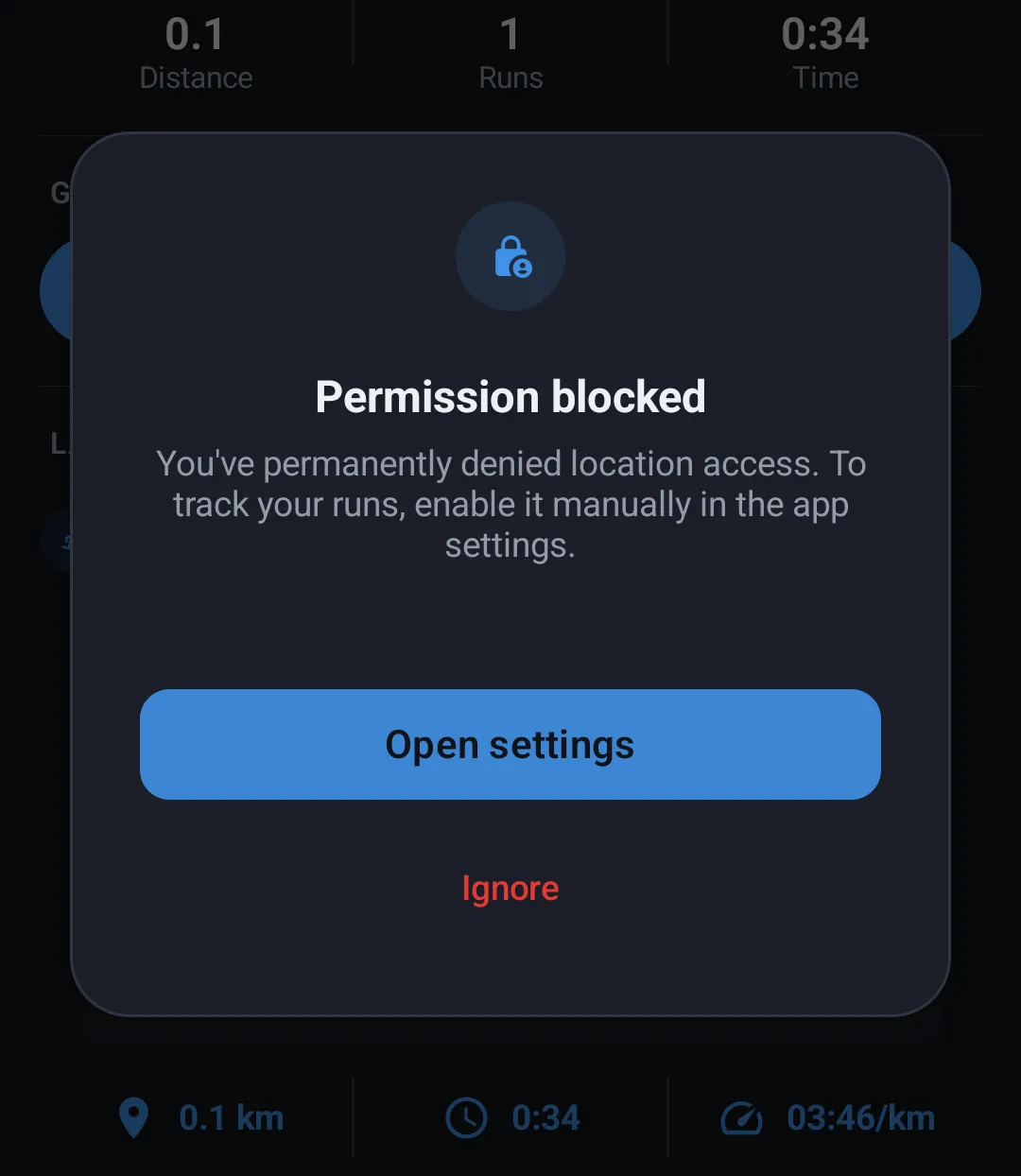
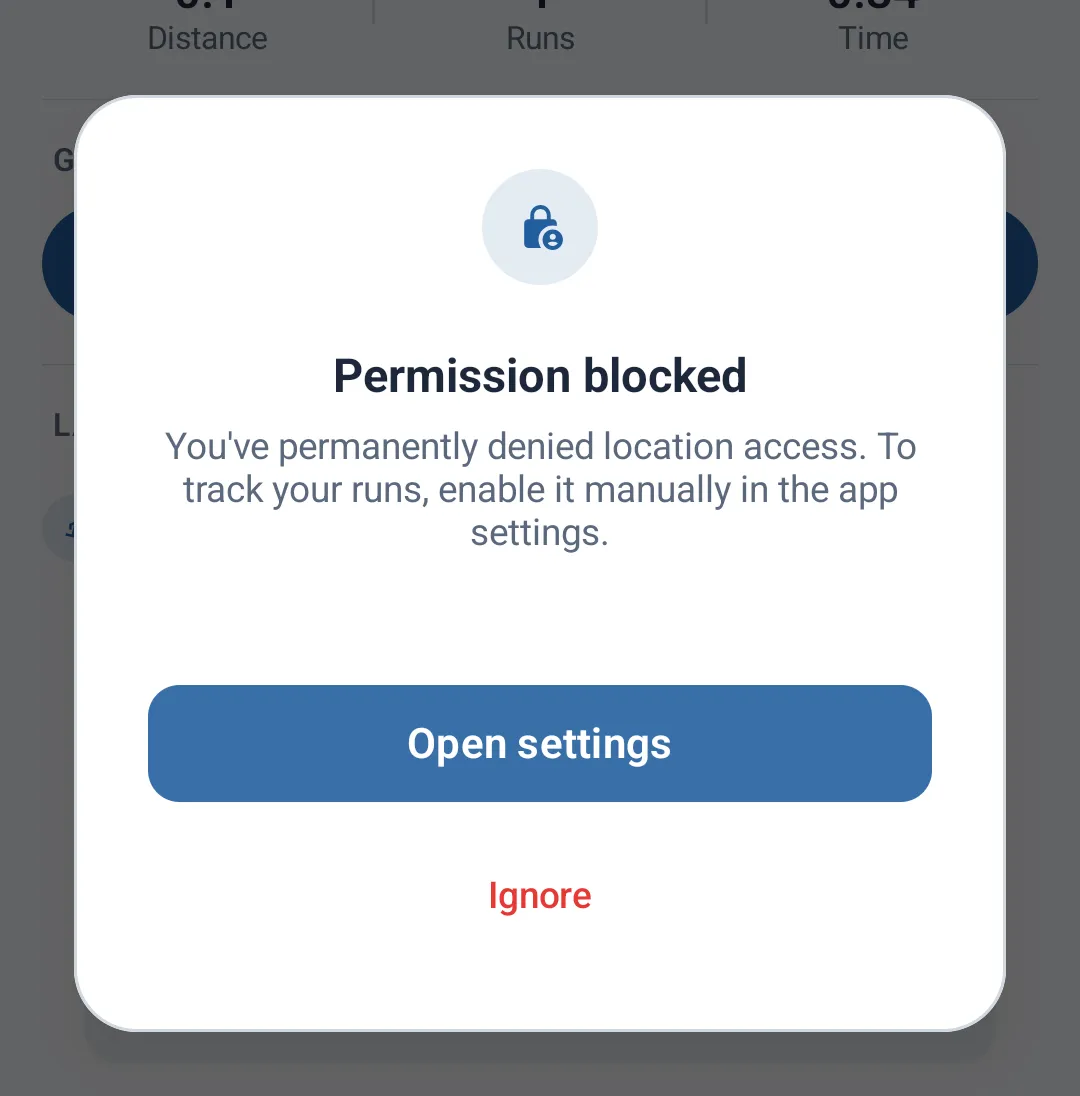
For GPS tracking to continue even while your screen is locked, the app needs location permission set to "Always Allow". If this permission isn't granted, an alert invites you to go to your device settings to enable it.
Tracking from the lock screen (Live Activity)
During your run, a Live Activity automatically appears on your lock screen and in the Dynamic Island (on compatible devices). It lets you check your stats without unlocking your phone:
- Distance covered
- Elapsed time
- Current pace
This Live Activity updates in real time and disappears automatically as soon as you stop your run.